 AirPower
Bulk Edit Shopify Files with Airtable
Manage the Shopify Files library in Airtable. Download images, documents, and videos, upload new files from attachments, and bulk edit alt text and filenames.
Bulk Edit Shopify Files with Airtable
In Shopify, the Files library holds the images, documents, videos, and 3D models a store uses outside of product media. Themes, pages, blog posts, and file metafields all point to files in this library.
The Files page in the Shopify admin handles one file at a time. Adding alt text across hundreds of images, renaming files to a naming convention, or uploading a batch of documents means repeating the same steps for each file.
AirPower brings the Files library into Airtable as one row per file. Review every file in a grid, then upload new files from Airtable attachments and edit alt text and filenames in bulk.
Files are separate from product images. For product and variant media, see Manage Shopify Product and Variant Images inside Airtable.
Shopify ID column for Files
File rows store the full Shopify ID as text, for example gid://shopify/MediaImage/123. Different file types can share the same numeric ID, so the full text ID keeps each row unique.
Use a Single line text field for the Shopify Id column on the Files table. This is an exception to the Number field type used on most other tables. AirPower creates the column with the correct type when it creates the table.
Download files from Shopify to Airtable
- On the dashboard, click Edit on a Shopify to Airtable sync, or create one
- Click Add data
- Click Files
- Click Create a Files table, or pick one of your tables from Use a table
- Click Save in the save bar
- In Save changes, keep Files ticked and click Save changes
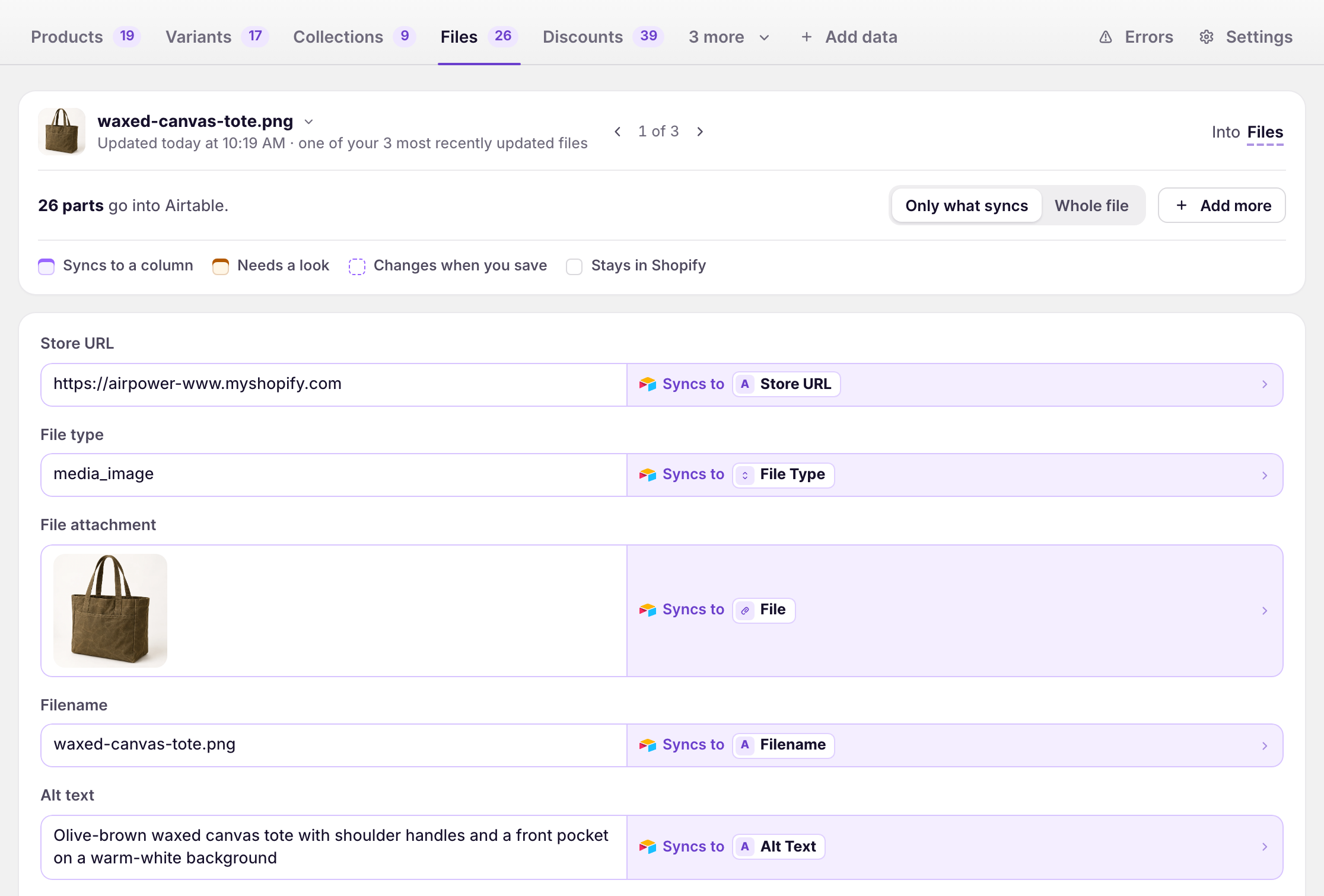
The new table comes with the recommended file fields. Ticking Files in step 6 loads your existing files. To load them later, click Settings, find Download data, and click Download next to Files.
What Files contain
File Type
media_image, generic_file, video, model_3d, or external_video. External videos are videos hosted on YouTube or Vimeo.
File Attachment
A copy of the file in an Airtable attachment column, named File by default. External videos have no attachment. Their links are in File URL and External Video Origin URL.
Editable details
Filename and alt text.
Read-only details
File status, media status, content type, MIME type, file URL, preview URL and status, original file size, width, height, duration in milliseconds, format, generated source URLs, external video host and URLs, created at, updated at, and any file or media errors from Shopify.
When files refresh
Shopify does not notify apps when the Files library changes. Files refresh only during the first download and when you click Download next to Files under Settings > Download data. They aren’t in the dashboard card’s Download now menu.
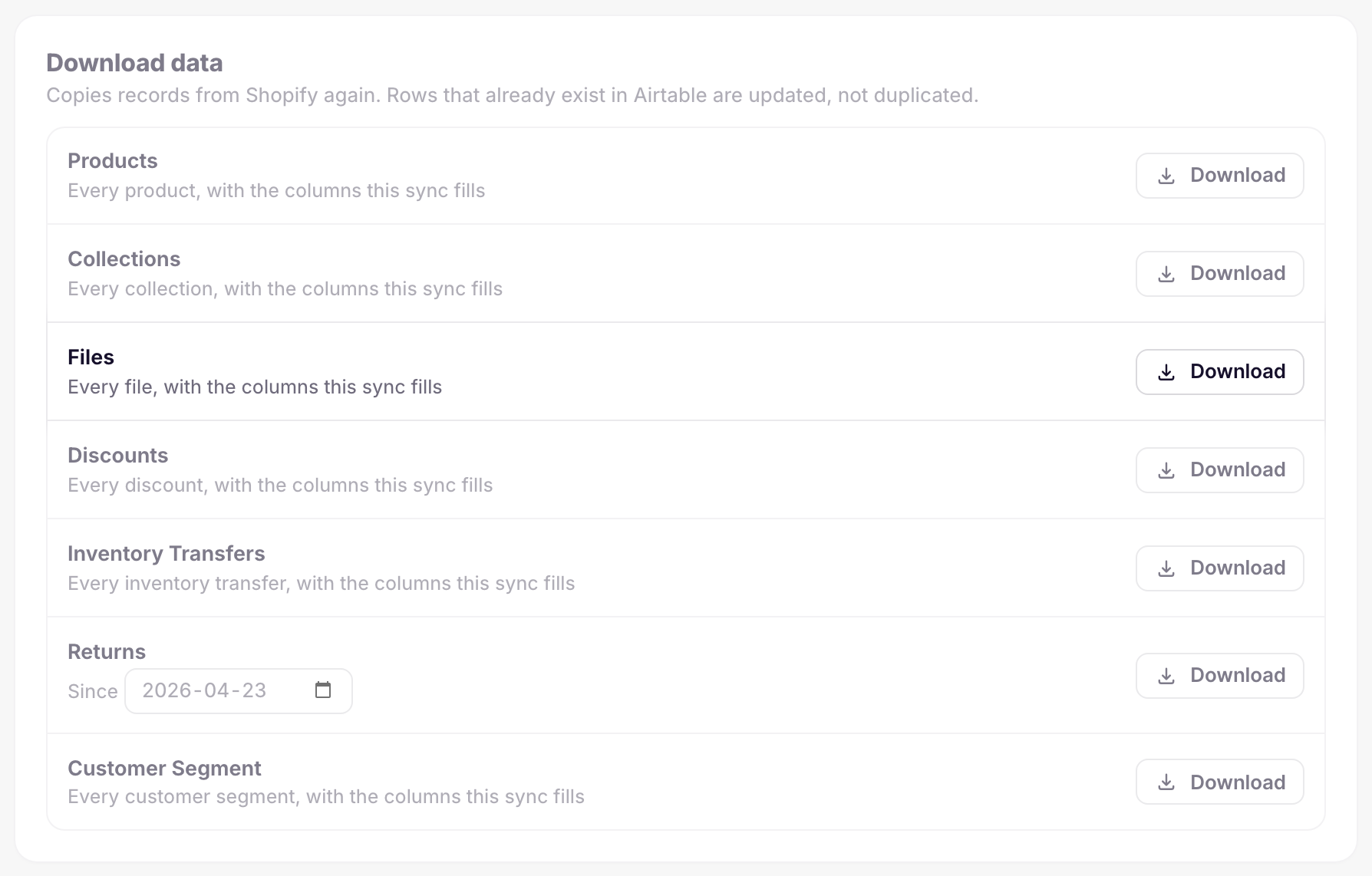
Run the download again after changing files in Shopify. Files deleted in Shopify are not removed from Airtable. Delete those rows in Airtable to keep the table in step.
Upload new files from Airtable
Uploads run through a separate Airtable to Shopify sync that uses the same Files table.
- On the dashboard, click Edit on an Airtable to Shopify sync, or create one
- Click Add data
- Click Files
- From Use a table, pick the table that holds your files
- Click Whole file
- Click Send from Airtable on File attachment, Filename, Alt text, and File type
- Click Save in the save bar
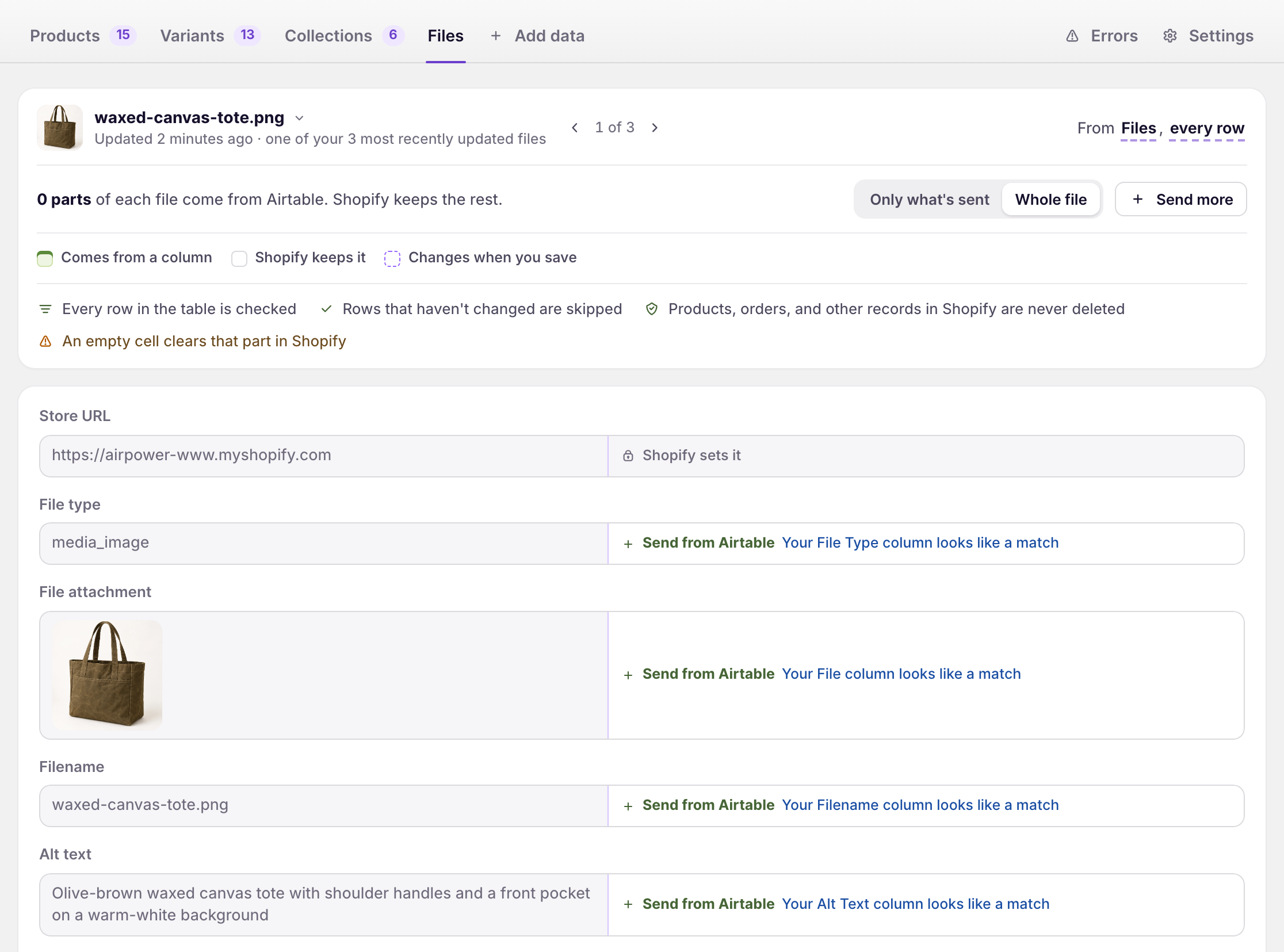
Each field uses your column with a matching name, such as File for File attachment. To pick another column, click the field.
To add a file, create a new row with a blank Shopify ID. Add exactly one file to the attachment column. Fill in Filename and Alt Text if needed. Then click Sync now on the dashboard sync card.
AirPower uploads the file to Shopify and writes the new Shopify ID back to the row. Use one row per file. A row with more than one attachment is skipped with an error.
File Type on new rows
Leave File Type blank to let AirPower choose from the file itself. To set it, use media_image, generic_file, video, or model_3d. External videos cannot be created from Airtable.
Videos and 3D models
Upload these as Airtable attachments. Video and 3D model uploads need the file details that Airtable stores with an attachment.
Filenames
New images and documents start with a temporary name. Once Shopify finishes processing the file, AirPower renames it to the Filename value. Send Filename from a column and fill it in so each new file gets the name you want. Videos and 3D models keep the temporary name, because Shopify does not allow renaming them.
The Shopify ID is the only value written back after an upload. Run a Files download from the Shopify to Airtable sync to load the new file’s status, URL, and other details.
Edit existing files
Rows with a Shopify ID update the matching file in Shopify. Only two fields change.
Alt Text
The column’s value replaces the file’s alt text. A blank cell clears it.
Filename
The column’s value renames the file. This applies to images and documents only. A blank cell leaves the name as it is.
Changing the attachment on an existing row does not replace the file in Shopify. To replace a file, add a new row with the new file. File Type is ignored on existing rows, and external video rows cannot be edited.
Deleting a row in Airtable, clearing its Shopify ID, or removing its attachment does not delete the file in Shopify.
File metafields
Shopify supports file metafields on image files only. Add them in the Metafields card on the Files tab, the same way as metafields on other data types.
Image rows read and write the file metafields you add. Other file types skip them. In an Airtable to Shopify sync, a filled cell sets the metafield and a blank cell removes it. An Airtable attachment column can’t be used for a file metafield.
See Bulk Edit Shopify Metafields in Airtable for the general metafield setup.
Common upload errors
Upload problems appear as row errors on the dashboard sync card and the sync’s Errors tab. Other rows keep syncing.
“A new Files row needs one mapped File Attachment before it can be created in Shopify.”
The row has a blank Shopify ID and no file in its attachment column. Add one file, or send File attachment from a column.
“Each Files row must contain exactly one Airtable attachment. Create a separate row for each file.”
Move the extra attachments to their own rows.
“Shopify could not process this file”
Shopify accepted the upload but could not process the file. Check the file format and size, then upload it again in a new row.
“Shopify File … no longer exists.”
The file was deleted in Shopify. Delete the row, or add a new row to upload the file again.
What you’ll see after saving
After a download, the Files table has one row per file, with a copy of each file in the attachment column. After an upload, the new row has its Shopify ID, and the file appears in the Files library in the Shopify admin.
Errors appear on the dashboard sync card and on the sync’s Errors tab. See Sync errors.
Related pages
Still stuck?
Email the team and tell us which store and which Airtable base you're working with.