 AirPower
Bulk Edit Shopify Unit Prices with Airtable
Set Shopify unit prices, like per 100 g or per liter, for every variant from Airtable. Edit total amounts, base measures, and units in bulk, then sync.
Bulk Edit Shopify Unit Prices with Airtable
In Shopify, a unit price shows shoppers what a product costs per standard measure, such as $2.40 per 100 g or $8.00 per liter. Each variant stores how much it contains and the measure its price is shown per. Shopify works out the unit price from the variant’s price. Showing it is a legal requirement in some regions.
Setting this up in the Shopify admin means opening each variant and entering its amount and units. Catalogs with many sizes, such as 250 g, 500 g, and 1 kg bags, repeat the same entry across hundreds of variants.
AirPower brings unit price details into your Variants table in Airtable. Fill the amounts and units in a grid, with fill down or a formula, and send them to Shopify in one sync run.
What the Unit price card contains
Unit prices are on the Variants tab. The Unit price card appears there once one of its fields syncs.
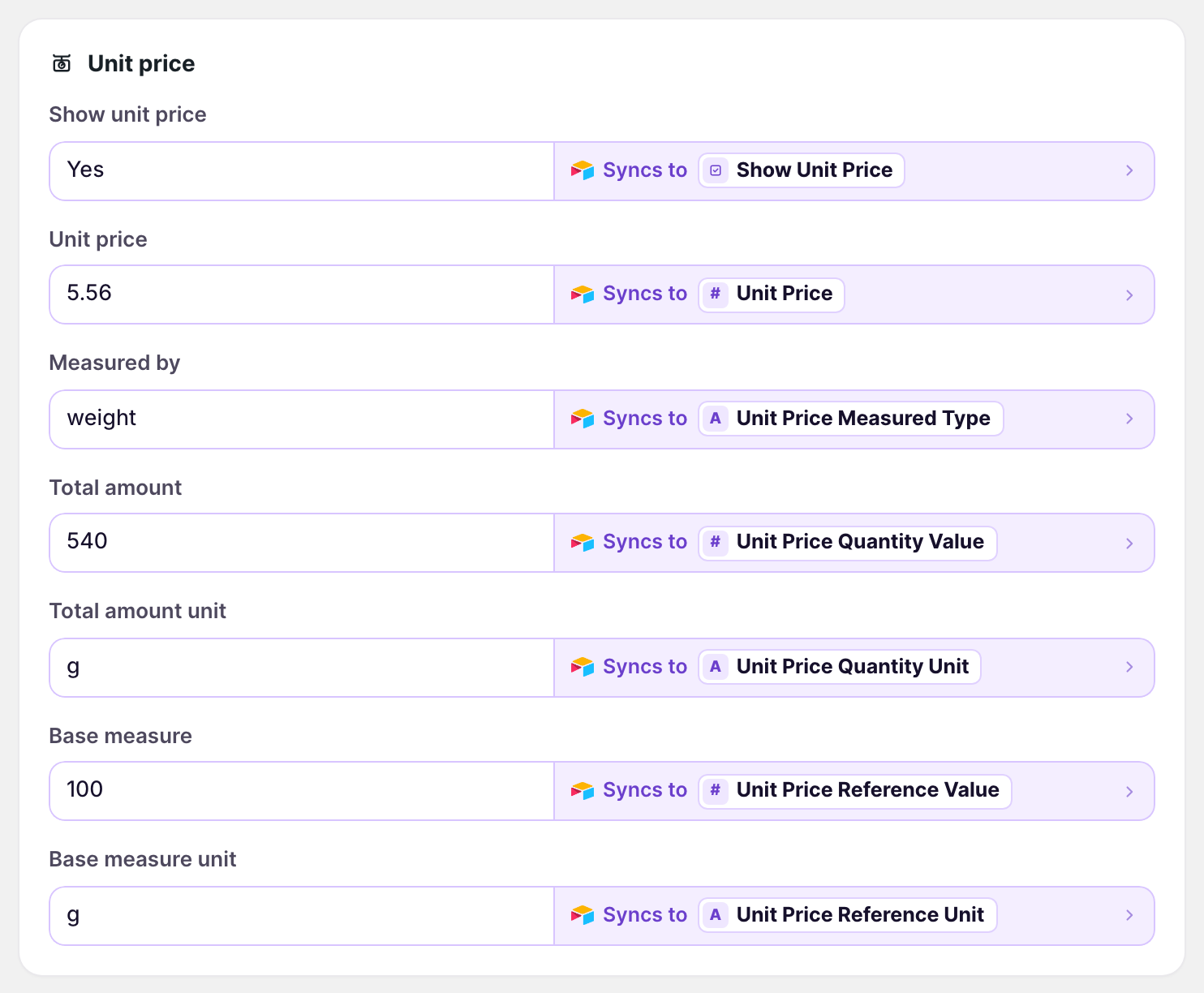
Show unit price
Whether shoppers see the unit price. A checkbox column.
Total amount and Total amount unit
How much the variant contains, such as 500 and g for a 500 g bag.
Base measure and Base measure unit
The measure the unit price is per, such as 100 and g for a price per 100 g. The base measure is a whole number.
Unit price
The price per base measure. Shopify calculates it from the variant’s price, so it comes into Airtable only.
Measured by
What the unit price measures: weight, volume, length, area, or count. It comes into Airtable only.
Shopify to Airtable syncs can bring in all seven fields. Airtable to Shopify syncs can send the first five.
Bring unit prices into Airtable
Your Shopify to Airtable sync needs Variants. See Bulk edit products and variants.
- On the dashboard, click Edit on your Shopify to Airtable sync
- Click Variants
- Click Add more
- Click Unit price
- Tick the fields you want
- Click the add button, such as Add 7 fields
- Click Save in the save bar
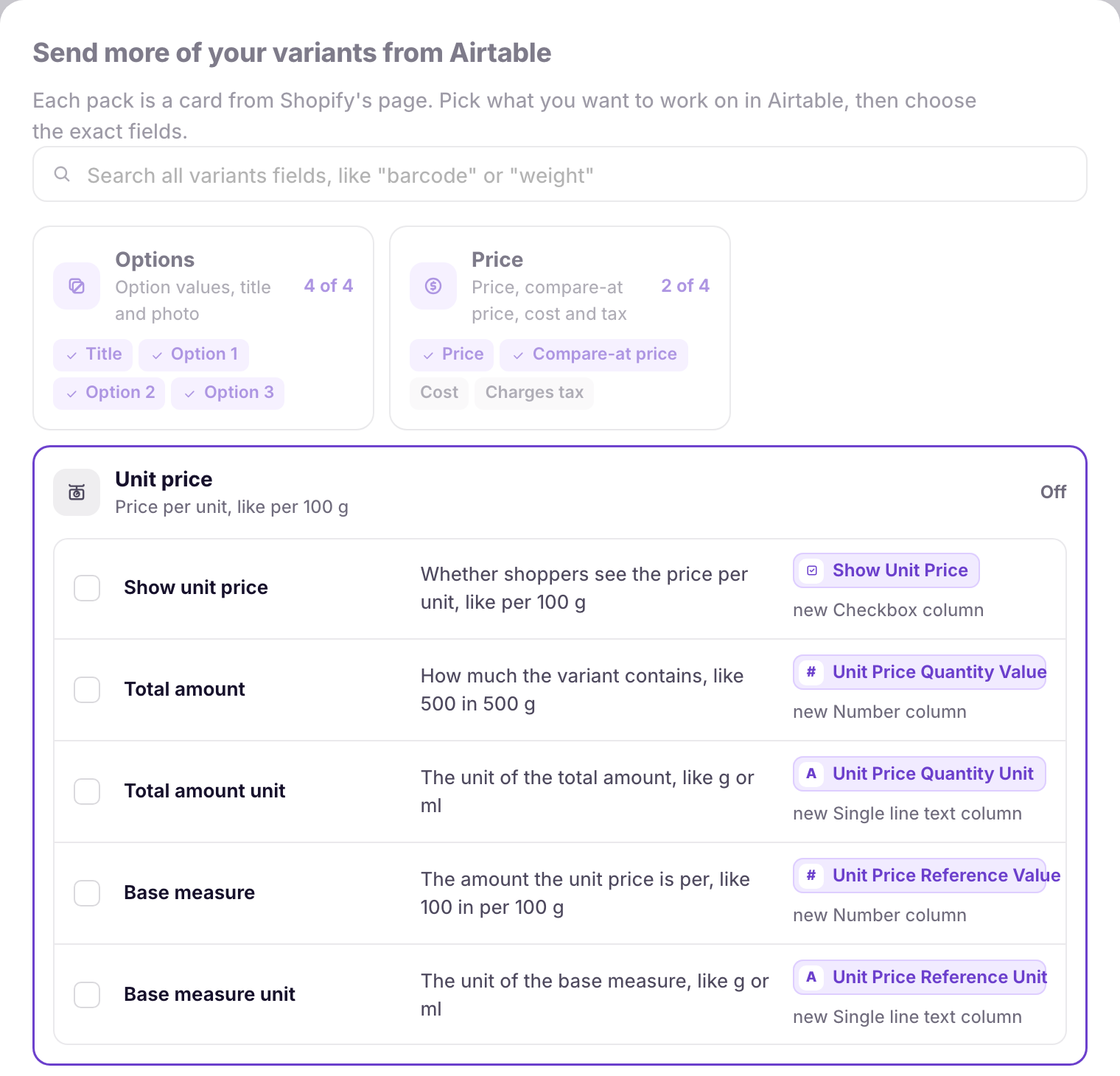
Each field shows the column it goes to. New columns get names such as Show Unit Price, Unit Price Quantity Value, and Unit Price Reference Unit, and are added to your Variants table when you save.
To fill the new columns for every variant, download products again. Click Settings, find Download data, and click Download next to Products. Unit prices download with products.
Send unit prices to Shopify
Your Airtable to Shopify sync needs Variants. See Update Shopify from Airtable.
- On the dashboard, click Edit on your Airtable to Shopify sync
- Click Variants
- Click Send more
- Click Unit price
- Tick Show unit price, Total amount, Total amount unit, Base measure, and Base measure unit
- Click Add 5 fields
- Click Save in the save bar
- Fill in the columns in Airtable
- Click Sync now
Rows with a Shopify ID update their variant. New variant rows get their unit price when the sync creates them.
Units
Enter units as Shopify’s short codes. Capital letters don’t matter, and spaces and punctuation are dropped, so fl oz works as floz. Shopify to Airtable syncs write the codes in lowercase.
Weight
mg, g, kg, oz, lb
Volume
ml, cl, l, m3, floz, pt, qt, gal
Length
mm, cm, m, in, ft, yd
Area
m2, ft2
Count
item
The base measure unit must measure the same thing as the total amount unit. A total in g can have a base measure in g or kg, but not in ml.
Empty cells and hiding unit prices
An empty Total amount, Base measure, or unit cell leaves that value in Shopify as it is. Editing one column doesn’t clear the other three.
Variants without a unit price come into Airtable with 0 in Total amount and Base measure, and empty units.
To stop showing a variant’s unit price, untick Show unit price and sync. The amounts and units stay on the variant in Shopify.
What you’ll see after the run
Each variant in the Shopify admin shows the total amount and base measure from Airtable, and its unit price. Shoppers see it on product, collection, cart, and checkout pages in Online Store 2.0 themes. Rows that Shopify rejects, such as one with an unknown unit, show on the sync’s Errors tab. See Sync errors.
Related pages
Still stuck?
Email the team and tell us which store and which Airtable base you're working with.