 AirPower
Sync Shopify Customer Segments to Airtable
Bring Shopify customer segments into Airtable. Review each segment's query and member count, and link segment members to your synced Customers table.
Sync Shopify Customer Segments to Airtable
In Shopify, a customer segment is a saved filter that groups customers by shared traits, such as location, order count, total spent, or email subscription status. Shopify keeps each segment’s member list current as customers start or stop matching its filter.
The Shopify admin shows one segment and its members at a time. Comparing segments, or seeing which segments a customer belongs to, means switching between segment pages and customer profiles.
AirPower brings customer segments into Airtable. Each segment becomes a row with its filter query and member count. When your Customers table is in the same sync, each segment row also links to the customers who belong to it.
Customer segments sync from Shopify into Airtable only. They cannot be created or edited from Airtable.
Before you start
Segment members link only to customers that already have a row in your Customers table. Set up Customers in the same sync first, then add Customer segments. See Bulk Edit Shopify Customers with Airtable for the Customers setup.
Set up Customer Segments
- On the dashboard, click Edit on the Shopify to Airtable sync that syncs your customers
- Click Add data
- Click Customer segments
- Click Create a Segments table, or pick one of your tables from Use a table
- Click Save in the save bar
- In Save changes, keep Customer segments ticked and click Save changes
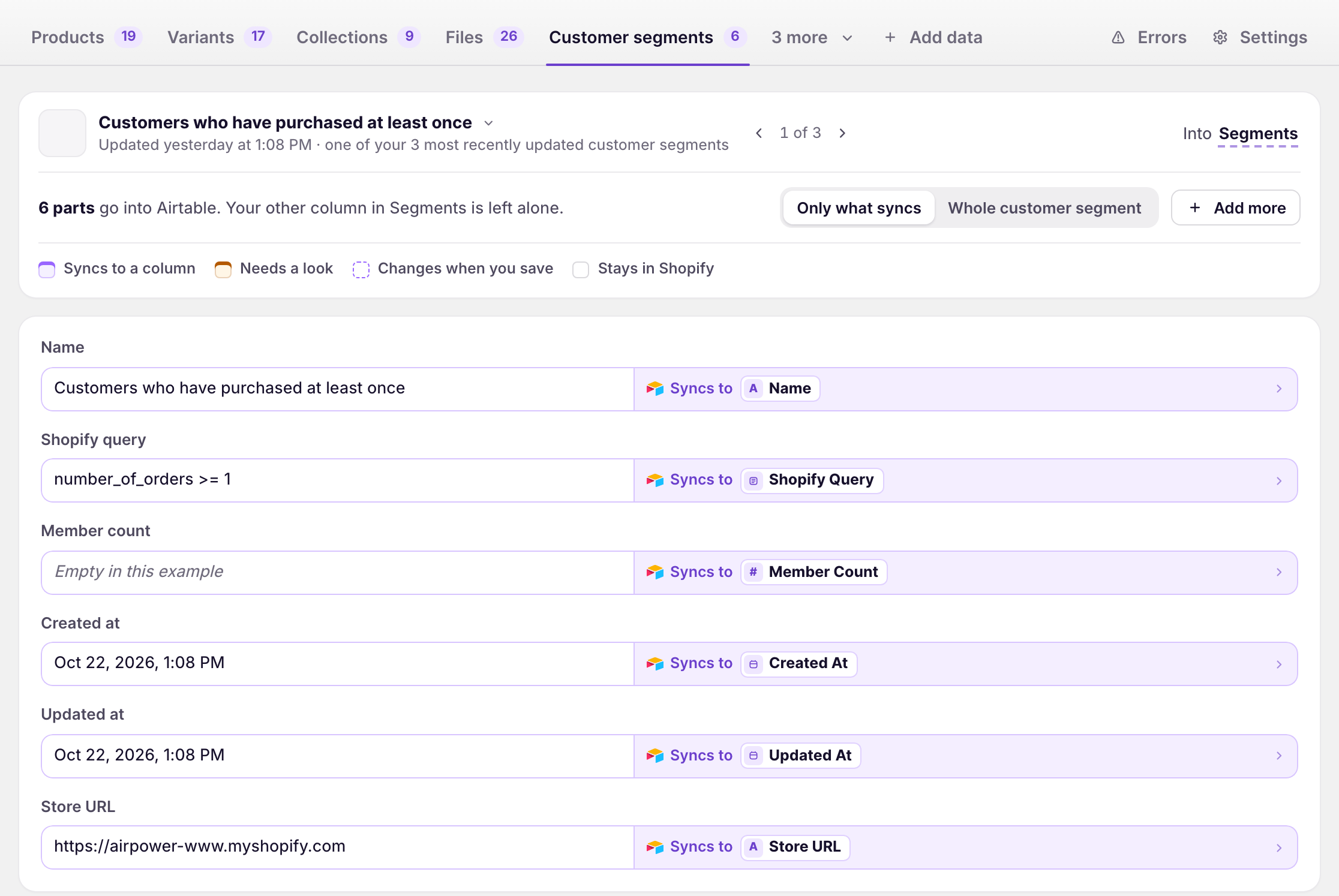
The new table comes with the recommended segment fields. When your Customers table already exists, the sync also adds a Customers linked-record column to the Segments table. Ticking Customer segments in step 6 loads your existing segments.
What Customer Segments contain
Segment fields
Name, Shopify query, member count, created at, updated at, and store URL. Shopify Query holds the segment’s filter as written in Shopify.
Customers link
A linked-record column named Customers that points to the segment’s members in your Customers table. Airtable adds the matching link column to the Customers table, so each customer row shows its segments.
Customers that are in a segment but do not have a row in your Customers table are not linked. Once those customers are added to Airtable, they are linked the next time the segment refreshes.
Load existing segments
- On the sync’s page, click Settings
- Find Download data
- Click Download next to Customer Segments
Shopify works out each segment’s member list in the background. When Member Count or the Customers link syncs to a column, AirPower waits for that list before writing the segment’s row. The row then appears complete, with its name, query, member count, and links. Large segments can take longer to appear.
When neither Member Count nor the Customers link syncs to a column, segment rows are written right away.
Ongoing sync
Shopify notifies AirPower when a segment is created, updated, or deleted, and when a customer joins or leaves a segment. AirPower then refreshes that segment’s row, including its full member list. The row keeps its current values until the new member list is ready.
When a segment is deleted in Shopify, its Airtable row is removed. For a segment created after setup, join and leave updates can take up to an hour to start.
Check the Customers link
The Customers link is listed in Settings under Linked tables. If the Customers column is missing, renamed, or not a linked-record field that points to your Customers table, the sync pauses and shows an error that names the column.
To fix it, create or correct the column in Airtable, then click Refresh tables and columns under Settings > Connection. Or pick the column the sync should use under Linked tables. See Linked-record columns.
What you’ll see after saving
The Segments table has one row per segment, and each row links to the matching rows in your Customers table. The dashboard sync card’s activity lists Customer segment updates as segments and their members change.
Errors appear on the dashboard sync card and on the sync’s Errors tab. See Sync errors.
Related pages
Still stuck?
Email the team and tell us which store and which Airtable base you're working with.