 AirPower
Update Shopify from Airtable: Send Bulk Edits to Your Store
Bulk edit Shopify products, prices, and stock in Airtable, then send the changes to your store with an Airtable to Shopify sync and the Sync now button.
Update Shopify from Airtable
In Shopify, each product keeps its own title, prices, tags, and stock. Changing them across a catalog means opening products one by one, or preparing a CSV import.
In Airtable, the same data sits in rows. Edit a column of prices, fill tags down a range, or update stock for a whole collection at once.
An Airtable to Shopify sync sends those edits to your store. You decide when: nothing reaches Shopify until you click Sync now, unless you set a schedule.
Before you start
The base needs the records you want to edit. The simplest way is to set up a Shopify to Airtable sync for the same base first.
That sync fills each row’s Shopify Id column, which tells AirPower which Shopify record the row updates. A row without a Shopify ID becomes a new record in Shopify.
Step 1: Start an Airtable to Shopify sync
- On the dashboard, click New sync
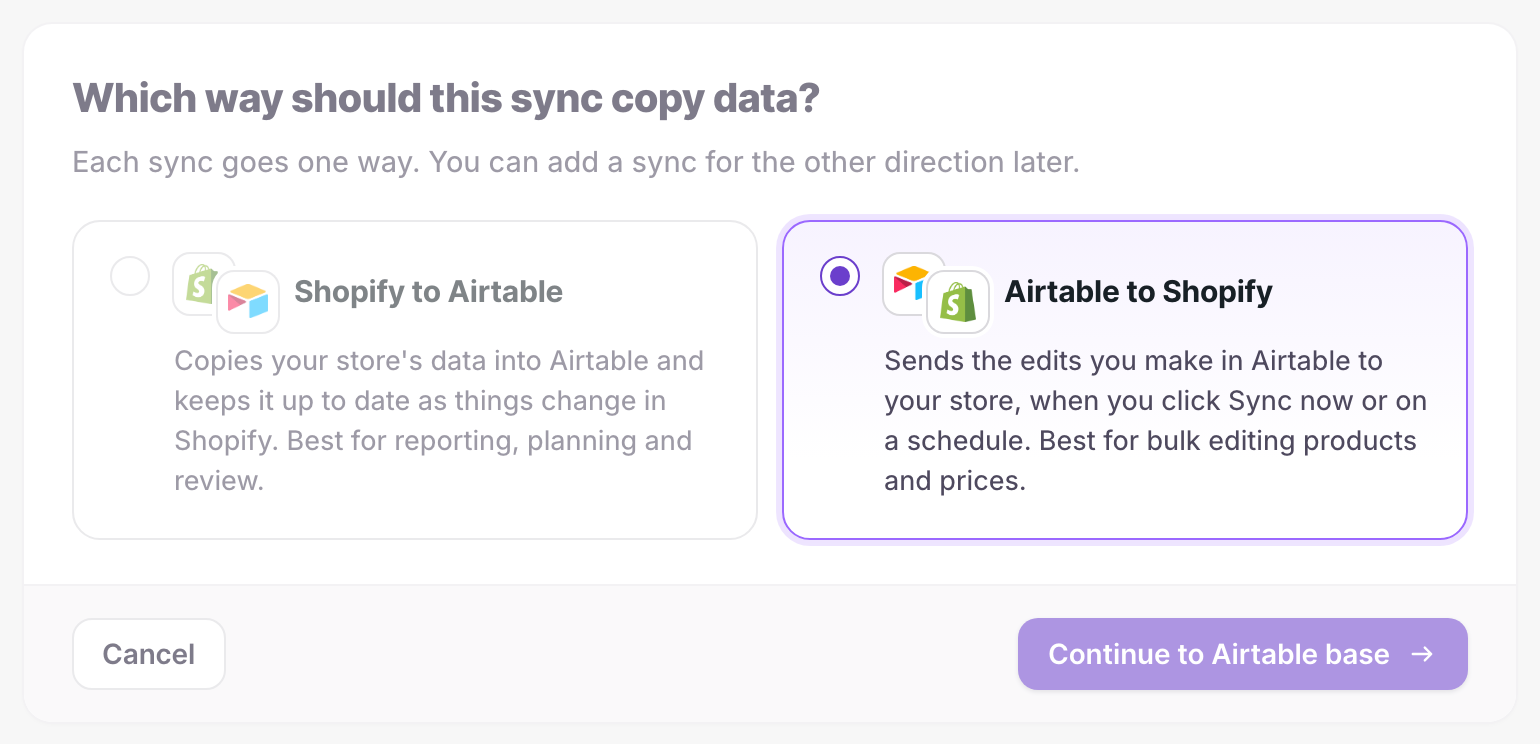
- On Direction, pick Airtable to Shopify
- Click Continue to Airtable base
On the welcome screen, click Start on Update Shopify from Airtable instead.
Step 2: Pick the base
- Pick the base your Shopify to Airtable sync uses
- Click Continue to data
If the base matches an AirPower template, click Set it up to send the template’s columns.
Step 3: Choose what to send
Start from a common setup, then add or remove data types.
Product catalog
Products, variants, and collections. Best for bulk editing.
Customers
Contact details, tags, and marketing consent.
I’ll choose
Starts with nothing selected, so you can pick from the full list.
AirPower sends the columns that are named like Shopify’s fields, such as Title or Price.

If a table has no columns named like Shopify’s fields, the step shows AirPower can’t tell what to send. Rename the columns in Airtable and pick the base again, or untick that data type.
- Click Product catalog
- Click Continue to schedule
Step 4: Choose when it runs
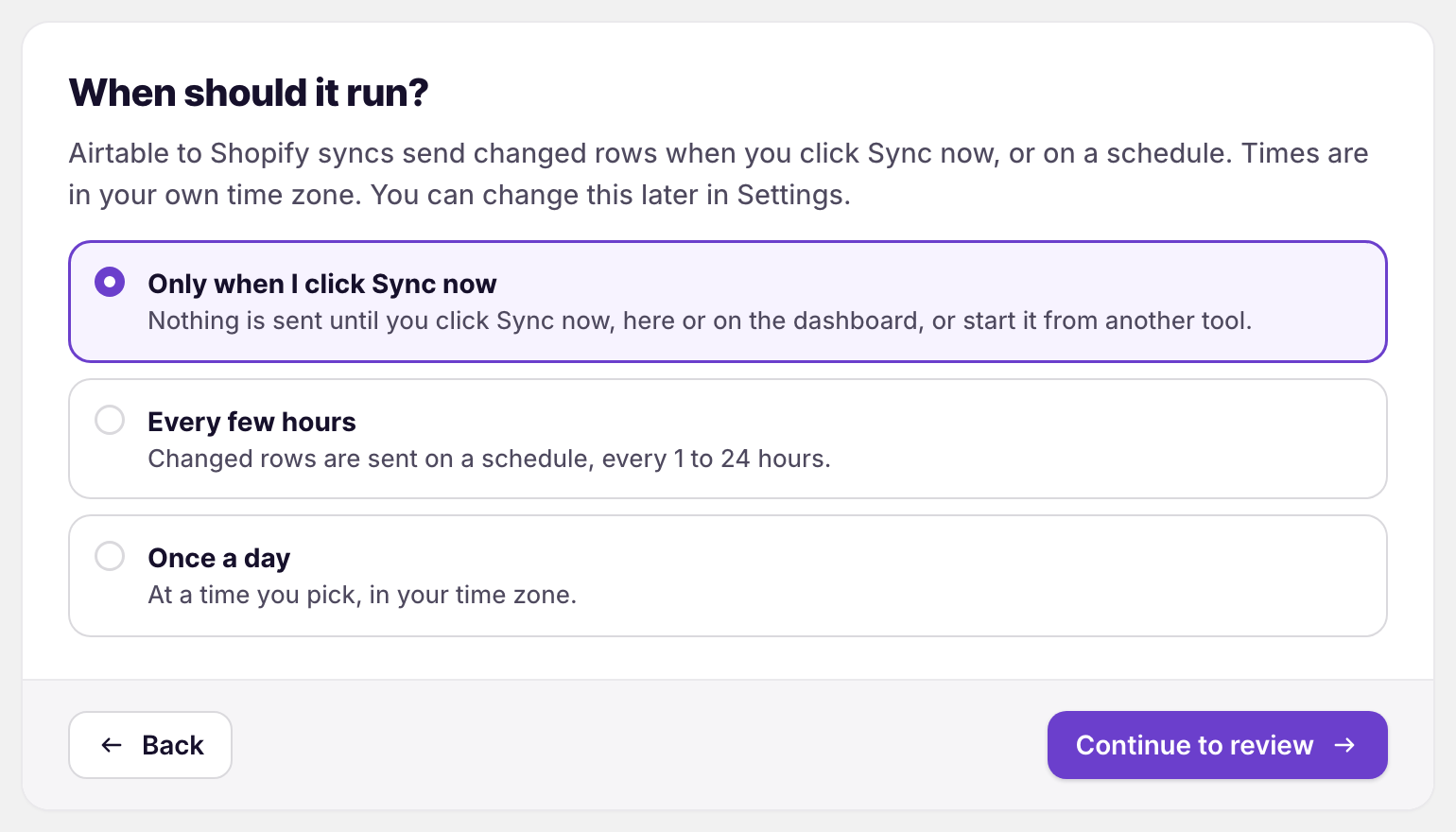
Only when I click Sync now
Nothing is sent until you click Sync now, on the sync’s page or the dashboard, or start it from another tool. This is the default.
Every few hours
Changed rows are sent on a schedule, every 1 to 24 hours.
Once a day
Changed rows are sent at a time you pick, in your time zone.
- Pick a schedule
- Click Continue to review
Step 5: Save the sync
- Check your choices
- Click Save sync
AirPower sets up your tables. Nothing is sent to Shopify yet. If your store hasn’t started its free trial, the button reads Save and start free trial, and Shopify asks you to approve the trial after saving.
Step 6: Check what it sends
The sync’s page opens. Each tab is a data type, such as Products or Variants. Each field shows the Airtable column it Comes from, with an example from your store.
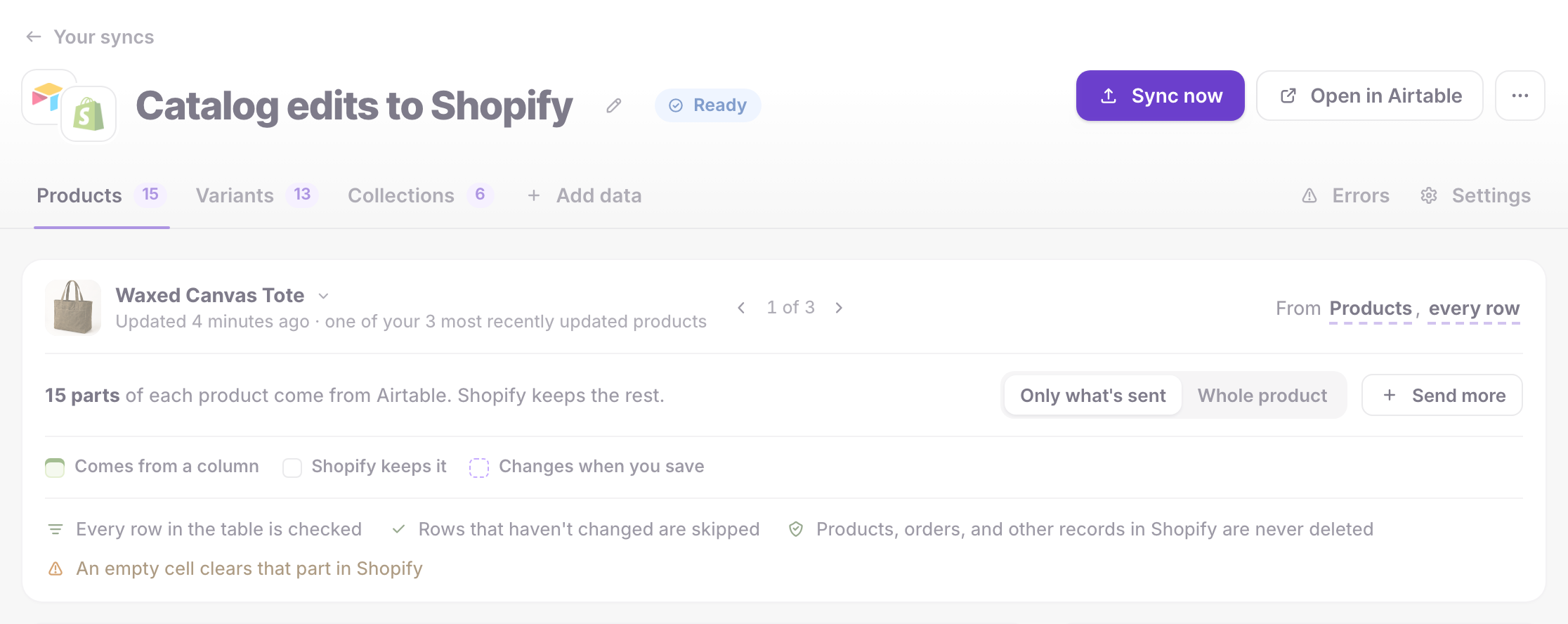
The summary under the tabs explains how each run works:
- Every row in the table is checked
- Rows that haven’t changed are skipped
- Products, orders, and other records in Shopify are never deleted
- An empty cell clears that part in Shopify
Check the empty columns before the first run. An empty Description column, for example, clears the description in Shopify, and an empty metafield cell removes that metafield. Removing a link can also remove something in Shopify, such as a product’s place in a collection. To send only some rows, click every row next to the table name and pick an Airtable view.
Step 7: Edit in Airtable and send
- Edit your rows in Airtable, such as prices on the Variants table
- Click Sync now on the sync’s page
What you’ll see after Sync now
The status shows Syncing while rows are sent, then Ready with the time of the last run. The dashboard sync card counts the rows that had changes and were sent.
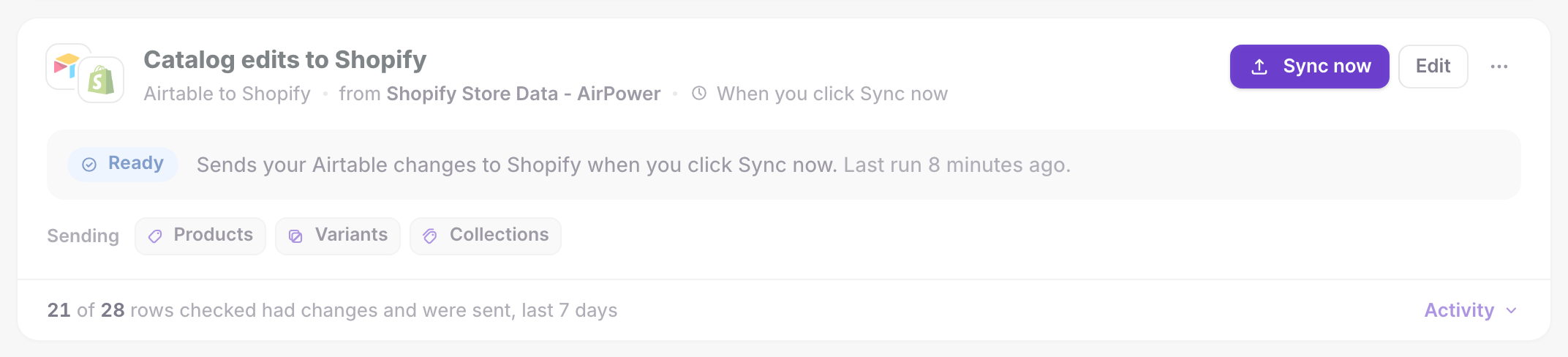
Rows that Shopify rejects appear on the card as errors, with the row and the reason. For example, Shopify rejects a variant with an empty weight. Fix the row in Airtable. The next run tries it again.
Your Shopify to Airtable sync then copies the updated records back into the base.
Related pages
Still stuck?
Email the team and tell us which store and which Airtable base you're working with.