 AirPower
Track Shopify Order Payment Terms and Due Dates in Airtable
Bring Shopify payment terms into Airtable, such as Net 30, with each order's amount due, due date, and paid date, to follow up on unpaid B2B and invoiced orders.
Track Shopify Order Payment Terms and Due Dates in Airtable
In Shopify, payment terms let a customer pay for an order later instead of at checkout. Terms can be a number of days, such as Net 30, a fixed date, or due on receipt or fulfillment. They’re common on B2B orders from company locations and on invoiced draft orders.
The Shopify admin shows an order’s terms and due date on the order page. Following up on unpaid orders across many customers means opening each order to check when it’s due and whether it’s been paid.
AirPower brings each order’s payment terms into your Orders table in Airtable. See every amount due and due date in one grid, and build views of what’s due soon or past due.
What payment terms contain
Payment terms are a pack in Add more on the Orders tab. They come into Airtable only.
Payment terms
The terms’ name, such as Net 30 or Due on receipt, their type, and the number of days the customer has to pay.
Amount due
The amount of the scheduled payment and its currency.
Issue date, Due date, and Paid date
When the scheduled payment was issued, when it’s due, and when it was paid. Paid date is empty until the customer pays.
IDs and timestamps
Shopify’s IDs for the terms and the scheduled payment, and when each was created and last changed.
AirPower brings in the order’s first scheduled payment. Orders without payment terms leave these cells empty.
Bring payment terms into Airtable
Your Shopify to Airtable sync needs Orders. See Bulk edit orders.
- On the dashboard, click Edit on your Shopify to Airtable sync
- Click Orders
- Click Add more
- Click Payment terms
- Tick the fields you want, such as Payment terms, Amount due, Due date, and Paid date
- Click the add button, such as Add 4 fields
- Click Save in the save bar
- In Save changes, keep Orders ticked and click Save changes
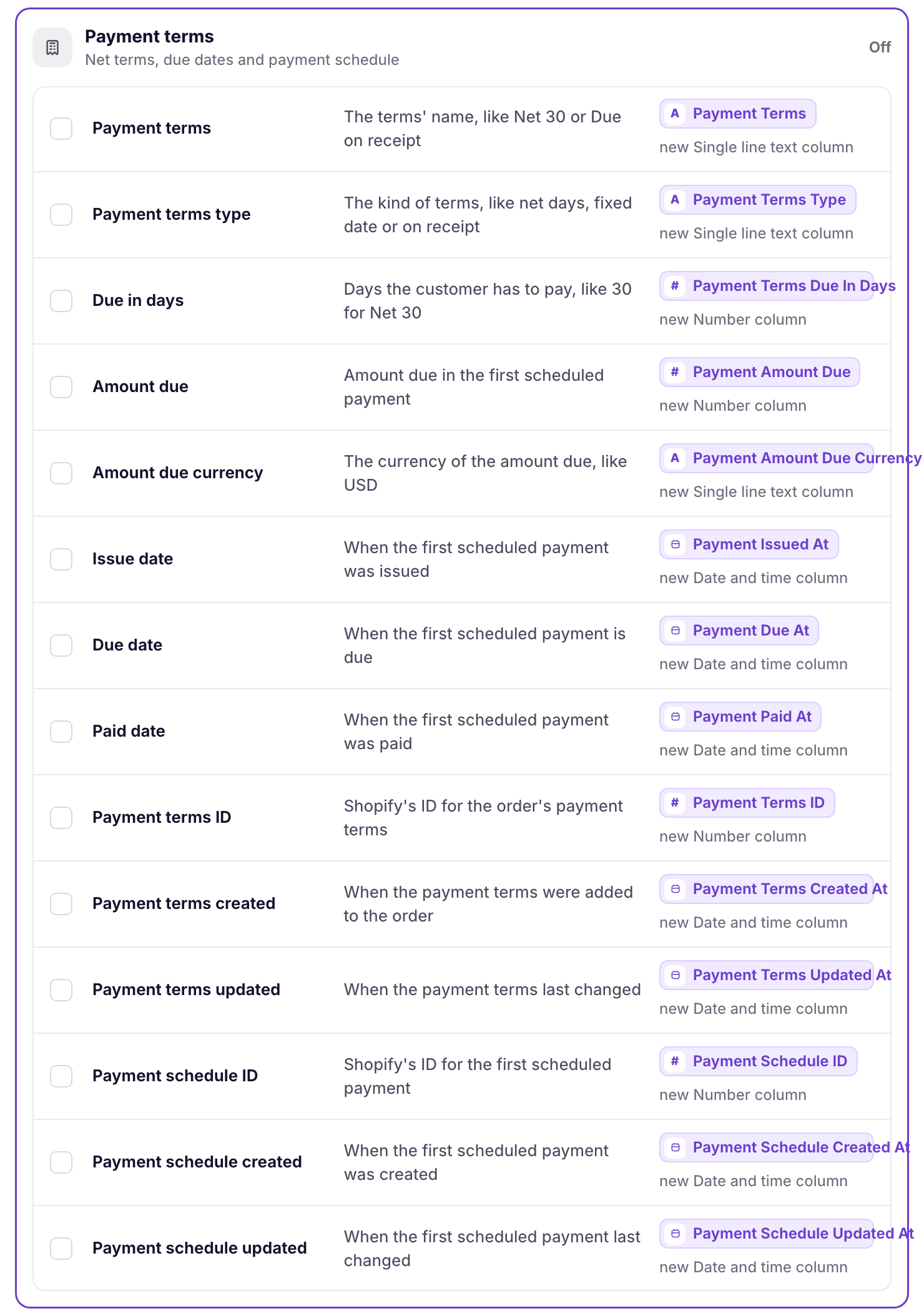
New columns get names such as Payment Terms, Payment Amount Due, Payment Due At, and Payment Paid At, and are added to your Orders table when you save. Dates come in as date columns and the amount as a number column, so Airtable can sort and filter them. Ticking Orders in step 8 fills them for the last six months of orders. To go further back, see Download Shopify data.
Keep due dates current
Order rows update when the order changes in Shopify. When a customer pays, the Paid date fills in on the order’s row.
Payment terms can’t be changed from Airtable. Change them on the order in the Shopify admin, and the row updates.
What you’ll see after saving
Each order with payment terms shows its terms, amount due, and due date. To follow up on unpaid orders, add an Airtable view that shows rows where Payment Due At isn’t empty and Payment Paid At is empty, sorted by Payment Due At. To see only what’s past due, also filter Payment Due At to before today.
Related pages
Still stuck?
Email the team and tell us which store and which Airtable base you're working with.