 AirPower
Sync Shopify Inventory Transfers and Shipments to Airtable
Bring Shopify inventory transfers and shipments into Airtable. Track stock moving between locations, shipment tracking, and received or rejected quantities.
Sync Shopify Inventory Transfers and Shipments to Airtable
In Shopify, an inventory transfer moves stock from one location to another, such as from a warehouse to a retail store. A transfer lists the items and quantities being moved. It can be sent in one or more shipments, and each shipment has its own tracking details and received quantities.
The Shopify admin shows transfers and shipments one at a time. Seeing everything in transit, comparing shipped and received quantities, or checking rejected items across locations means opening each transfer.
AirPower brings transfers and shipments into Airtable as four linked tables. Transfers and shipments each get a table, and so do their line items. Line items link to their parent record and to your Products and Variants tables.
All four data types sync from Shopify into Airtable only. They cannot be created or edited from Airtable.
The four data types
All four are listed under Products and catalog in Add data.
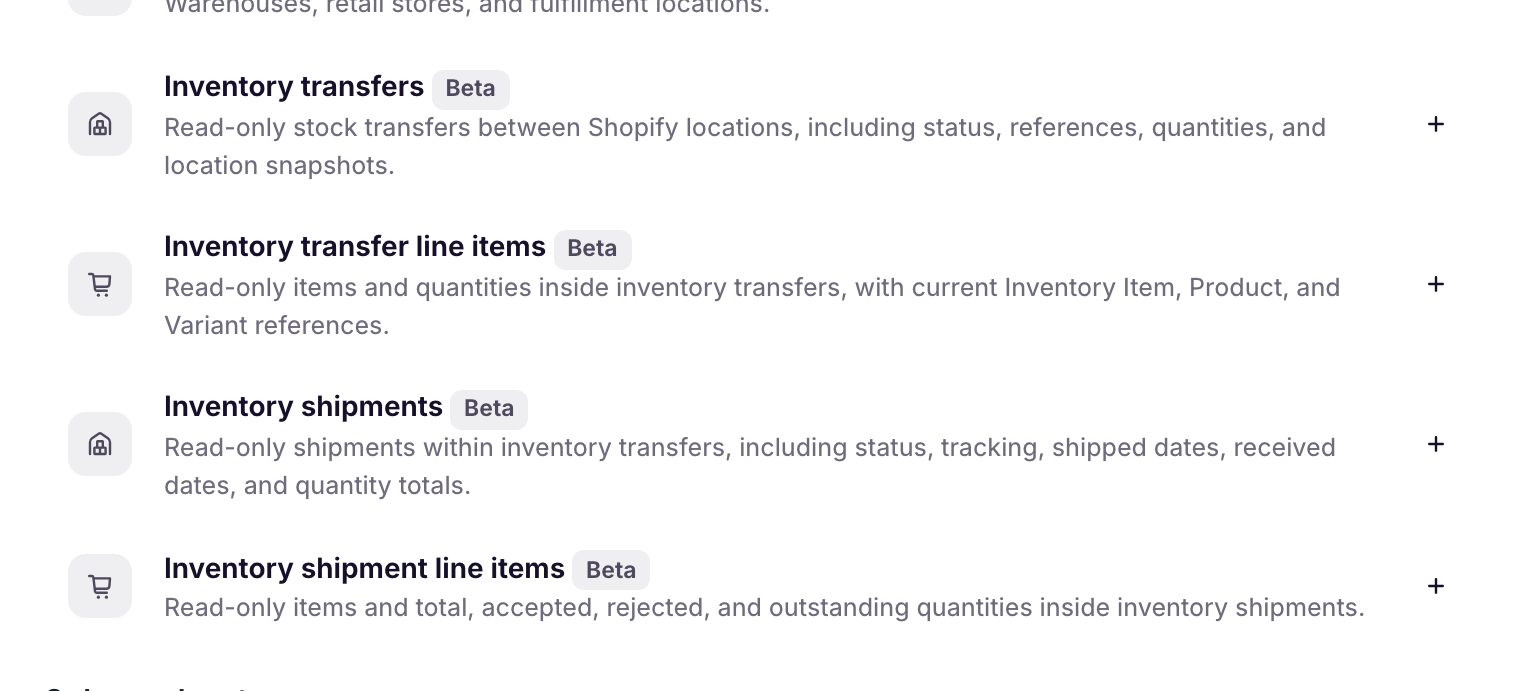
Inventory Transfers
One row per transfer, with its status, origin and destination locations, and total and received quantities.
Inventory Transfer Line Items
One row per item in a transfer, with quantities that are shippable, picked for shipment, or already shipped.
Inventory Shipments
One row per shipment within a transfer, with tracking details, shipped and received dates, and accepted and rejected totals.
Inventory Shipment Line Items
One row per item in a shipment, with quantities that are accepted, rejected, or not yet received.
Set up transfers and shipments
- On the dashboard, click Edit on a Shopify to Airtable sync, or create one
- Click Add data
- Click Inventory transfers
- Click Create an Inventory Transfers table, or pick one of your tables from Use a table
- Repeat steps 2 to 4 for Inventory transfer line items, Inventory shipments, and Inventory shipment line items, each with its own table
- Click Save in the save bar
- In Save changes, keep the data types ticked and click Save changes
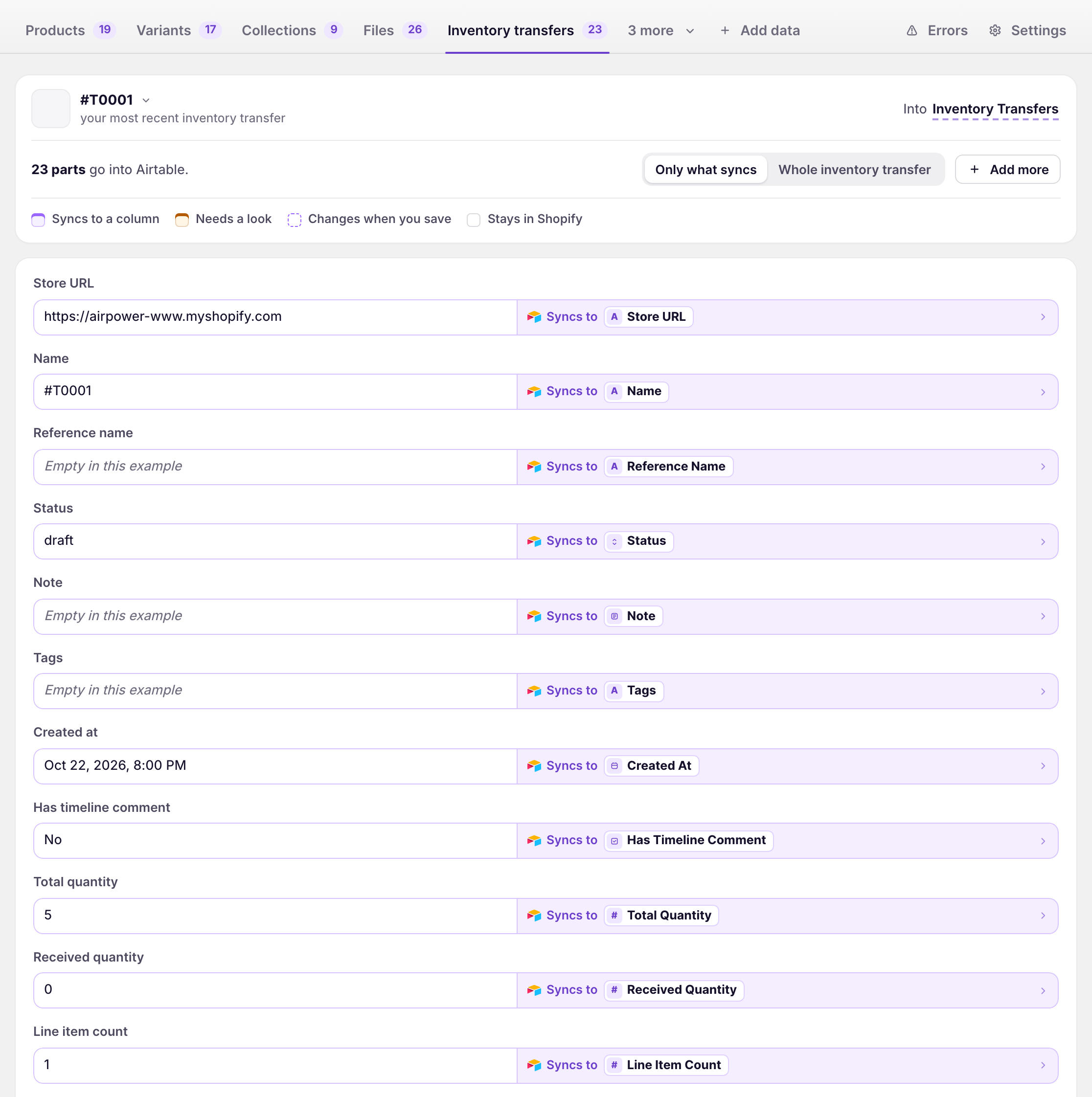
New tables come with the recommended fields. To add more, click Add more on the data type’s tab. Ticking the data types in step 7 loads your existing transfers and shipments.
To link line items to products and variants, set up Products and Variants in the same sync.
What transfers and shipments contain
Inventory Transfers
Name, reference name, status, note, tags, created at, total quantity, received quantity, and line item count. Status is draft, ready_to_ship, in_progress, transferred, canceled, or other.
Origin and destination fields hold a snapshot of each location: location ID, name, address, phone, formatted address, latitude, longitude, and when the snapshot was taken.
Inventory Transfer Line Items
Transfer ID, title, total quantity, and picked for shipment, processable, shippable, and shipped quantities. Each line also carries its inventory item ID, SKU, and tracked setting, plus the variant’s ID, title, and SKU, and the product’s ID and title.
Inventory Shipments
Name, barcode, status, transfer ID, and created, shipped, and received dates. Totals cover line item count, total quantity, and accepted, received, and rejected quantities. Tracking fields are Tracking Company, Tracking Number, Tracking URL, and Tracking Arrives At, the estimated arrival date. Status is draft, in_transit, partially_received, received, or other.
Inventory Shipment Line Items
Shipment ID, quantity, and accepted, rejected, and unreceived quantities. Each line also carries its inventory item, variant, and product details.
How the tables link
When the related data types are in the same sync, AirPower fills these linked-record columns:
- Inventory Transfer on the Inventory Transfer Line Items and Inventory Shipments tables
- Inventory Shipment on the Inventory Shipment Line Items table
- Product and Variant on both line item tables
Airtable adds the matching columns on the parent tables, such as Transfer Line Items, Inventory Shipments, and Shipment Line Items.
If a linked product, variant, or transfer is not in Airtable yet, AirPower adds a row with only its Shopify ID so the link can be made. That row’s other fields fill in the next time the record syncs.
Locations are not linked. Origin and destination location IDs are stored as numbers. Saving adds any link columns your tables don’t have yet. If a link column is renamed or changed to another field type later, the sync pauses and shows an error that names the column. See Linked-record columns for how to fix it.
Load existing transfers and shipments
- On the sync’s page, click Settings
- Find Download data
- Click Download next to Inventory Transfers
- Click Download next to Inventory Shipments
Each download loads every transfer or shipment in the store. Line items load with their parent. There are no separate download rows for them.
Ongoing sync
Shopify notifies AirPower when a transfer is updated, marked ready to ship, completed, or canceled, and when its items or quantities change. Shopify also notifies AirPower when a shipment is created, marked in transit, received, or deleted, and when its items, quantities, or tracking change. AirPower then reloads the record and its line items from Shopify.
When Shopify reports that items were removed from a transfer or shipment, AirPower deletes those line item rows. When a shipment is deleted in Shopify, AirPower removes its row and the line item rows linked to it. Shopify does not send a notification when a transfer is removed, so transfer rows stay in Airtable until you delete them.
What you’ll see after saving
After the first download, each table has one row per record, linked to its parent and to your Products and Variants. The dashboard sync card’s activity lists Inventory transfers and Inventory shipments as they change.
Errors appear on the dashboard sync card and on the sync’s Errors tab. See Sync errors.
Related pages
Still stuck?
Email the team and tell us which store and which Airtable base you're working with.