 AirPower
Bulk Edit Shopify Metaobject Translations with Airtable
Bulk edit translated Shopify metaobject fields with Airtable. Give each language or market its own column, then push translations back to Shopify entries.
Bulk Edit Shopify Metaobject Translations with Airtable
In Shopify, metaobject entries hold structured content such as size guides, FAQs, ingredient lists, and store details. When a metaobject definition has translations turned on, each text field in its entries can have a translated value for every store language, and optionally for a specific market.
Translating entries in the Shopify admin happens one entry, one field, and one language at a time. For definitions with many entries and several languages, that adds up quickly.
AirPower brings metaobject translations into Airtable. Each language and market gets its own column on the metaobject’s table, next to the original values. Review and edit translations in bulk, then push them back to Shopify.
For setting up the metaobject table itself, see Bulk Edit Shopify Metaobjects with Airtable.
Before you start
- The Shopify store has at least one additional language, or at least one market
- The metaobject definition has translations turned on in Shopify. AirPower does not change this setting.
- The metaobject definition has at least one field type that can be translated, as listed under Translatable fields
- The metaobject definition is already in the sync, with its own table
The Translations card appears on the definition’s tab only when translations are turned on and it has at least one translatable field. A definition with only number or date fields shows no card, even with translations turned on.
Definitions load when the sync’s page opens. After turning on translations for a definition in Shopify, reload the sync’s page to see the Translations card.
Translatable fields
Text, rich text, HTML, URL, link, JSON, and file fields can be translated. Lists of text, URLs, links, and files can be translated too.
Number, date, true or false, measurement, rating, money, color, and reference fields cannot be translated. They do not appear in the Translations card.
Translation cards
The Translations card shows one section per language and scope, titled with the language.
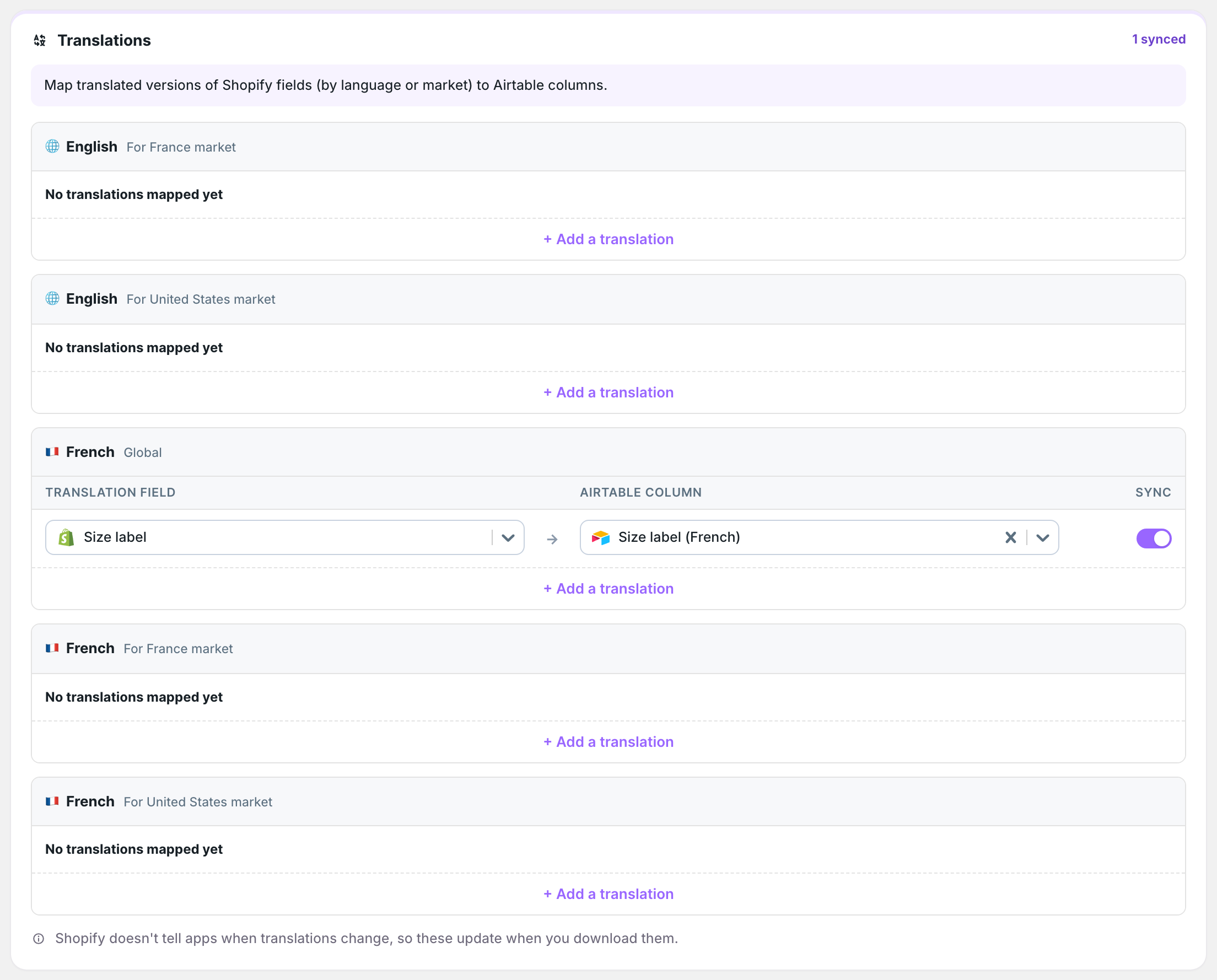
Global
A section marked Global holds the translation for that language in every market. It appears for each additional store language.
For a specific market
A section marked with a market, such as For France market, holds a translation that only applies in that market. It overrides the global translation there. Market sections also appear for the store’s main language, so wording can vary by market.
Add metaobject translations
- On the dashboard, click Edit on the sync
- Click the tab named for the definition
- Click Whole followed by the definition’s name, such as Whole size guide
- Find the Translations card
- Find the section for the language and scope you want
- Click + Add a translation
- Choose the Translation field and the Airtable column it goes to
- Click Save in the save bar
Until a translation is added, the card shows only in the Whole view.
If the Airtable column does not exist yet, the card shows a notice with a Create column button. The new column is a single line text field. For multi-line text, rich text, JSON, or list fields, create a long text column in Airtable instead and select it.
Value format
Plain text translations are stored as written. List and rich text translations are stored in Shopify’s JSON format. A translated list looks like ["Rouge","Bleu"].
Keep the same format when editing these cells in Airtable. Plain text such as Rouge, Bleu is sent to Shopify as written. A multiple select column is sent as a list.
Pull translations from Shopify
Translations load with the metaobject entries during the first download and each Metaobjects download, and saving the sync downloads them too. They also refresh when an entry is created or updated in Shopify.
To load translation edits made in Shopify, run a full translations download:
- On the Shopify to Airtable sync’s page, click Settings
- Find Download data
- Click Download next to Translations
The same download is in the Download now menu on the dashboard sync card. Each download overwrites the translation columns. When an entry has no translation in Shopify for a column’s language and scope, that cell is cleared.
Push translations to Shopify
- On the dashboard, click Edit on the Airtable to Shopify sync
- Click the tab named for the definition
- In the Translations card, check that each translation has its column
- Click Save in the save bar if you changed anything
- Click Sync now
AirPower writes the translations to each entry in Shopify. A metaobject table can send translations without sending any of the entry’s other fields. In that case, only translations are written and the entries themselves are not changed.
Rows need a Shopify ID
Translations are written only to entries that exist in Shopify. Rows without a Shopify ID are skipped, unless the sync also sends the entry’s fields. Then AirPower creates the entry first and writes its translations in the same run.
Blank cells remove translations
Each run sends every translation column for every row in the synced view. A blank cell removes that translation from Shopify. Add only the languages and scopes you maintain in Airtable. To send only some rows, click every row next to the table name on the tab and pick an Airtable view.
Original value required
A translation is skipped when the entry’s field has no value in the store’s main language.
What you’ll see after saving
After a translations download, each translation column holds the translated value for its language and scope. After an Airtable to Shopify run, the translations appear on the entry in the Shopify admin and in the storefront for that language or market.
Errors appear on the dashboard sync card and on the sync’s Errors tab. See Sync errors.
Related pages
Still stuck?
Email the team and tell us which store and which Airtable base you're working with.