 AirPower
How to Connect Airtable to Shopify
Connect Airtable to your Shopify store in about a minute. Sign in with Airtable or paste a personal access token, then pick the bases your syncs can use.
How to Connect Airtable to Shopify
Airtable controls which apps can read and change your bases. Before Shopify data can reach a base, Airtable has to let the app in.
You grant that access once. After that, every sync you create can use the bases you shared. You decide how much to share: a single base, one workspace, or everything in your account.
AirPower connects to Airtable in one of two ways: Airtable’s own sign-in, or a personal access token that you create in Airtable. Both give your syncs the same features. Connecting takes about a minute.
Where you connect
The connection appears in the New sync setup, on the Airtable base step, the first time you create a sync.
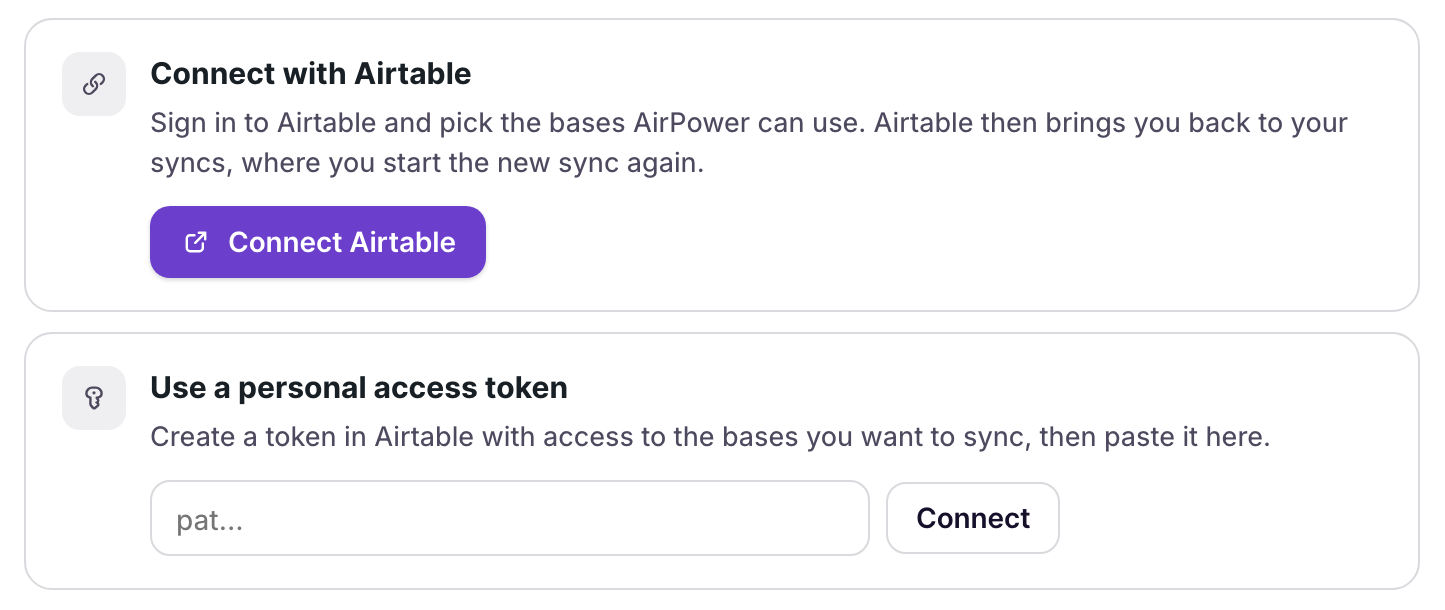
Connect with Airtable
Sign in to Airtable and pick the bases AirPower can use. There is nothing to copy or paste.
Use a personal access token
Create a token in Airtable with access to the bases you want to sync, then paste it into the setup.
Connect with Airtable
- On Which Airtable base should it use?, click Connect Airtable
- Sign in to Airtable if asked
- Under Choose what AirPower can access, pick what to share
- Click Grant access
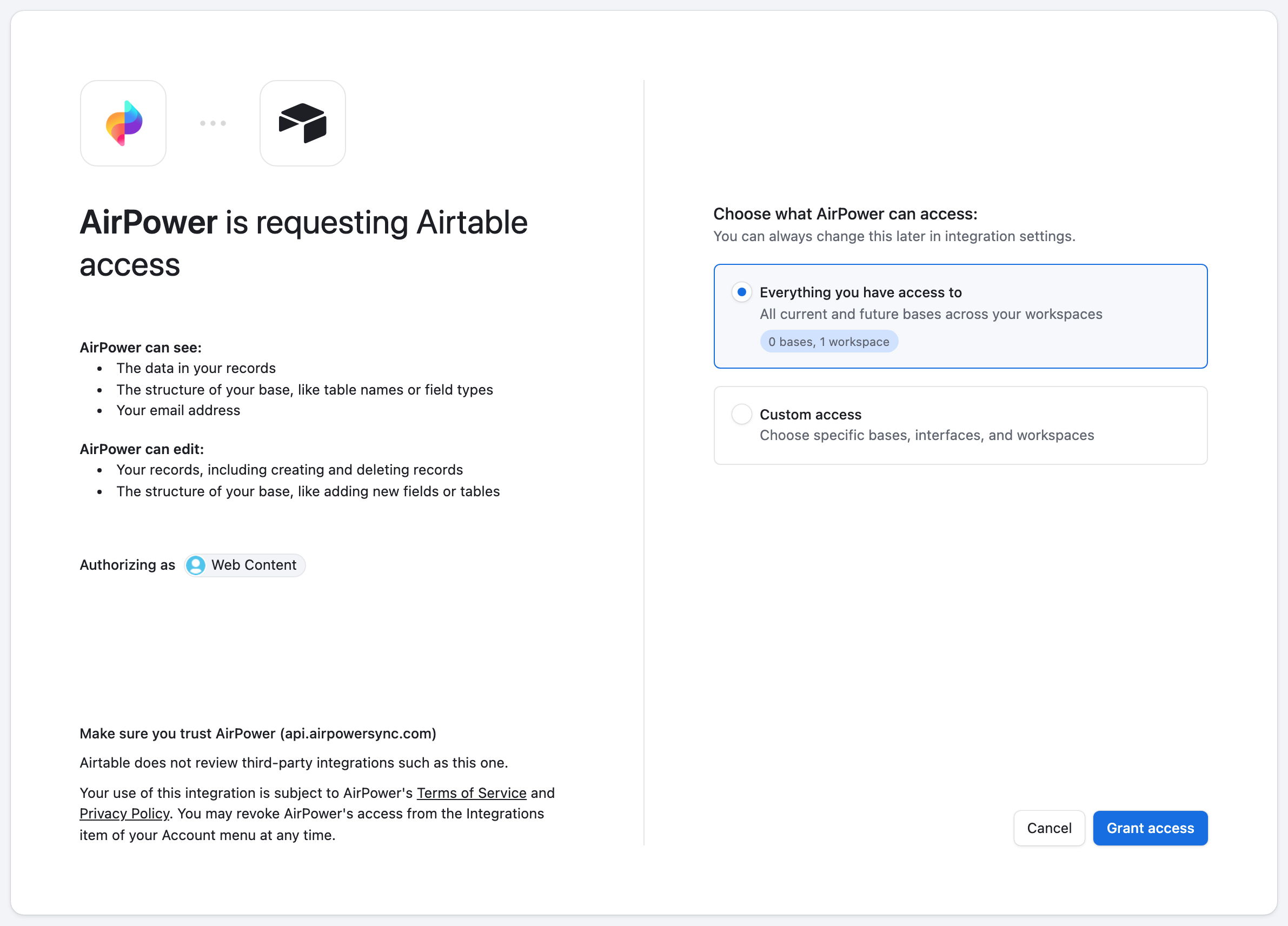
You don’t need to share everything. Under Custom access, search for a base or workspace and pick only what your syncs will use.
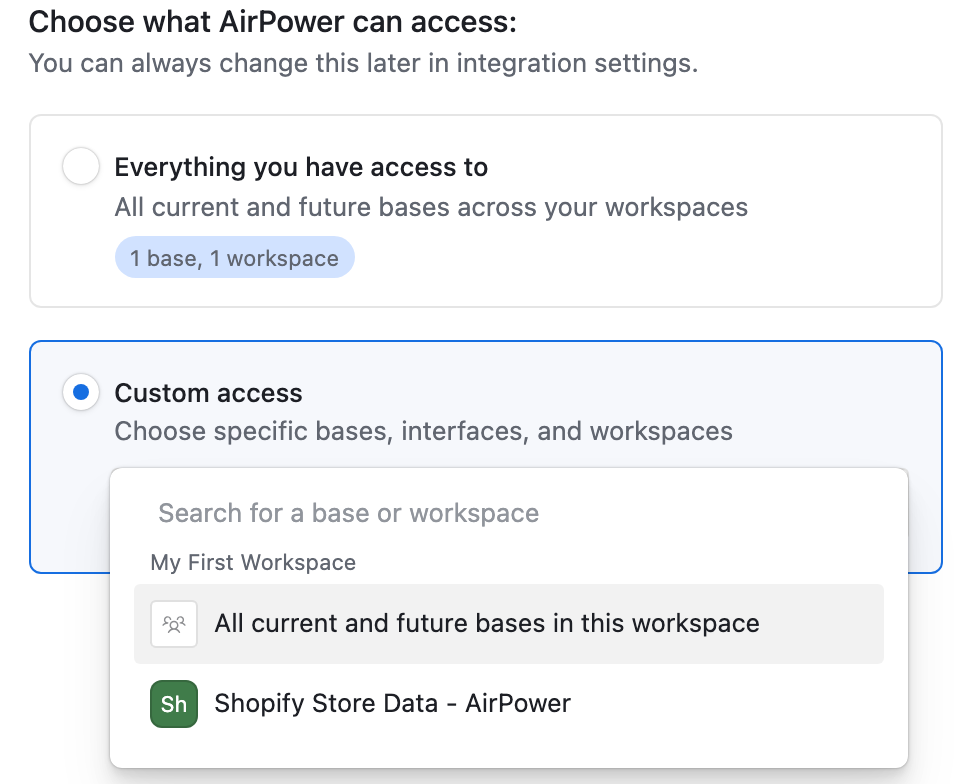
A single base
Under Custom access, pick the base. AirPower can reach only that base. Pick more than one if your syncs use several.
A workspace
Under Custom access, pick All current and future bases in this workspace. AirPower can reach the workspace’s bases, including ones you add later. Choose this if AirPower should create a new base for you.
Everything you have access to
Covers all current and future bases across all your workspaces.
Airtable then brings you back to your syncs. Click New sync again to continue. The bases you picked are listed on the Airtable base step.
Use a personal access token
Create the token in Airtable first. Create an Airtable personal access token has each step.
The token needs these scopes:
data.records:readdata.records:writeschema.bases:readschema.bases:write
Then add it to the setup.
- On Which Airtable base should it use?, paste the token into the field under Use a personal access token
- Click Connect
What you’ll see after connecting
The Airtable base step lists every base AirPower can reach, with its name and base ID. Pick one and click Continue to data to finish setting up your first sync.
If the list is empty, the step shows AirPower can’t see any bases yet. Give AirPower access to a base in Airtable, then click Reload the list. You can also click Create a new base instead.
Give AirPower access to more bases
New bases don’t always appear on their own. It depends on the access you granted.
If you connected with Airtable
On the Airtable base step, click Open Airtable under Give AirPower access to more bases. Add the bases in Airtable, then click Reload the list.
If you used a token
Edit the token in Airtable’s Builder Hub and add the base under Access. Then click Reload the list on the Airtable base step.
Manage the connection later
Open Airtable Settings from the app’s menu in your Shopify admin. The page lists your personal access tokens and your Airtable sign-in, which it calls Airtable Connect.
Use it to add another token with Add Personal Access Token, connect with Connect via Airtable, or end a sign-in with Disconnect from Airtable.
Troubleshooting
A base is missing from the list
The token or sign-in doesn’t include that base. Add it in Airtable, then click Reload the list.
AirPower can’t add tables to this base
The connection can read the base but can’t change it. Add the schema.bases:write scope to the token, or connect again and include the base. Then pick the base again.
Creating a new base fails
The connection needs access to the whole workspace. For a token, add the workspace under Access with All current and future bases in this workspace. For a sign-in, include the workspace when you grant access.
Syncs stop after Airtable ends a sign-in
Airtable can end a sign-in connection, for example during an Airtable service issue. Connect again from Airtable Settings.
Related pages
Still stuck?
Email the team and tell us which store and which Airtable base you're working with.