 AirPower
Sync Shopify Order UTM and Marketing Attribution to Airtable
Bring each Shopify order's first and last visit into Airtable: source, referrer, referral code, UTM tags, and days to purchase, for campaign and channel reports.
Sync Shopify Order UTM and Marketing Attribution to Airtable
In Shopify, each online order keeps a record of the store visits that led to it. The first visit shows how the customer found your store, and the last visit shows what brought them back to buy. Each visit has its source, such as Google or Instagram, its referring page, any referral code, and the UTM tags on the link.
The Shopify admin shows this in each order’s Conversion summary, one order at a time. Comparing campaigns or channels across hundreds of orders means opening every order or working from a separate analytics report.
AirPower puts each order’s attribution in columns on your Orders table in Airtable. Group orders by UTM campaign or source, add up their totals, and see which marketing brings in sales.
What marketing attribution contains
Attribution is on the Orders tab, in the Conversion summary card and the Marketing attribution pack in Add more. It comes into Airtable only.
First visit
The date of the first visit that led to the order, its source and source details, source type, referring page, and referral code.
Last visit
The same details for the last visit before the order, plus the store page it landed on.
UTM tags
UTM source, medium, campaign, content, and term, for both the first and the last visit.
Landing page and referring site
The first page the customer landed on in your store, and the website that sent them.
Days to purchase
The number of days between the first visit and the order.
Attribution ready and Has attribution
Whether Shopify has finished collecting visit data for the order, and whether it found any visits.
Bring attribution into Airtable
Your Shopify to Airtable sync needs Orders. See Bulk edit orders.
- On the dashboard, click Edit on your Shopify to Airtable sync
- Click Orders
- Click Add more
- Click Marketing attribution
- Tick the fields you want
- Click the add button, such as Add 12 fields
- Click Save in the save bar
- In Save changes, keep Orders ticked and click Save changes
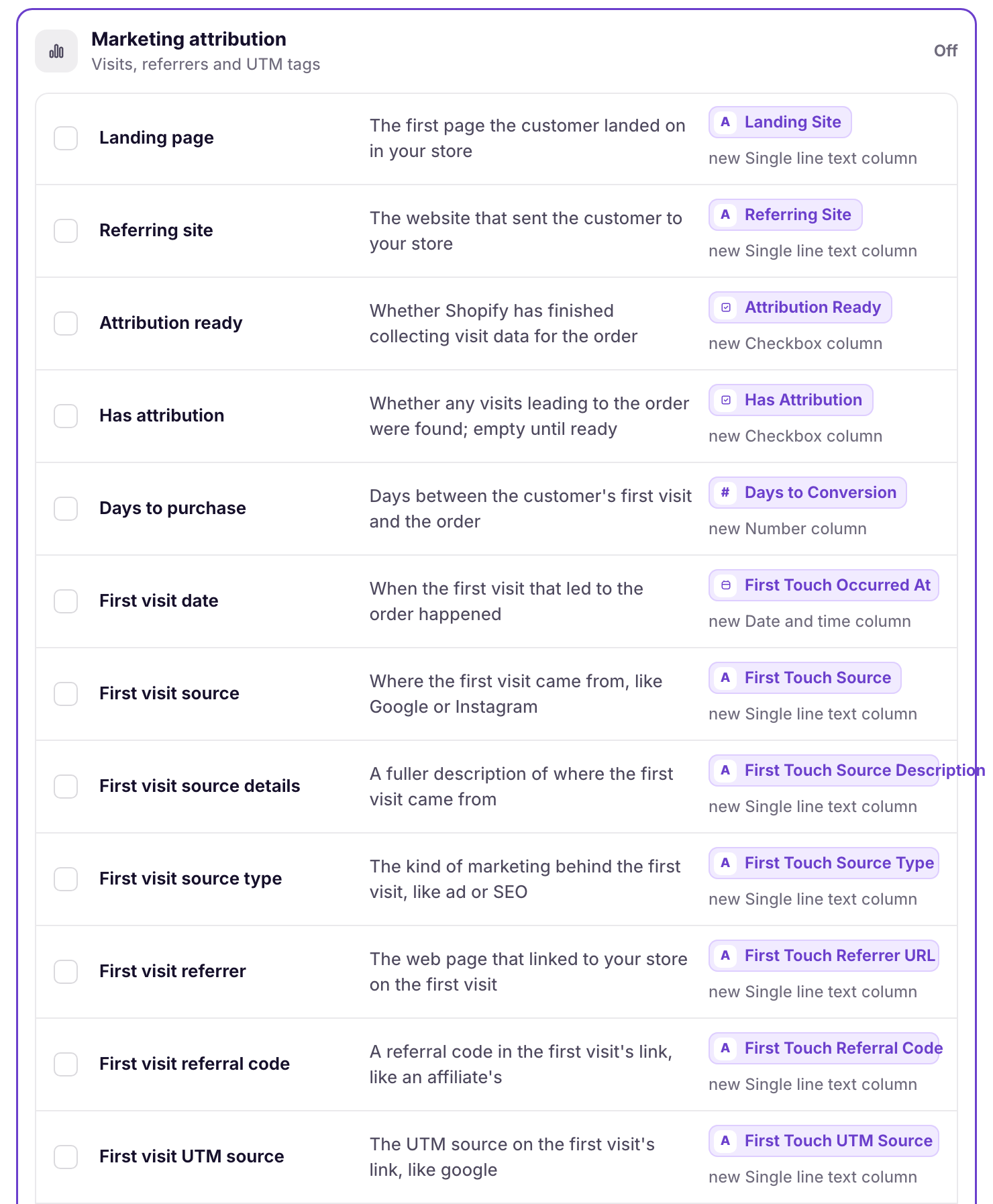
New columns get names such as First Touch Source, First Touch UTM Campaign, and Last Touch UTM Source, and are added to your Orders table when you save. Ticking Orders in step 8 fills them for the last six months of orders. To go further back, see Download Shopify data.
First visit source, Days to purchase, Landing page, and Referring site are also in the Conversion summary card. Click Whole order to see them, then Sync to Airtable under each one.
When attribution is empty
Shopify takes some time after a purchase to collect visit data. Until then, Attribution ready is unticked and the visit columns are empty. They fill in the next time the order syncs, such as when the order changes in Shopify or when orders are downloaded again.
Orders that didn’t start with a visit to your online store, such as Point of Sale orders, have no visit data. A UTM column stays empty when the link the customer followed had no UTM tags.
What you’ll see after saving
Each order row shows its attribution in the new columns. Group the Orders table by First Touch UTM Campaign or Last Touch Source, and add a sum of the order total to each group to compare sales by campaign or channel.
Related pages
Still stuck?
Email the team and tell us which store and which Airtable base you're working with.