 AirPower
Sync Shopify Discounts to Airtable
Bring Shopify automatic and code discounts into Airtable. Review status, dates, values, usage counts, and combination rules for every promotion in one grid.
Sync Shopify Discounts to Airtable
In Shopify, a discount lowers the price of products, orders, or shipping. Automatic discounts apply at checkout on their own. Code discounts apply when a customer enters a code.
Each discount has its own value, start and end dates, minimum requirements, usage limits, and rules for combining with other discounts. The Shopify admin shows those details one discount at a time. Checking which promotions are live, which end this week, or how often each code has been used means opening each discount separately.
AirPower brings discounts into Airtable as one row per discount. Sort, filter, and group every promotion by status, dates, type, or usage in one grid.
Discounts sync from Shopify into Airtable only. They cannot be created or edited from Airtable.
Set up Discounts
- On the dashboard, click Edit on a Shopify to Airtable sync, or create one
- Click Add data
- Click Discounts
- Click Create a Discounts table, or pick one of your tables from Use a table
- Click Save in the save bar
- In Save changes, keep Discounts ticked and click Save changes
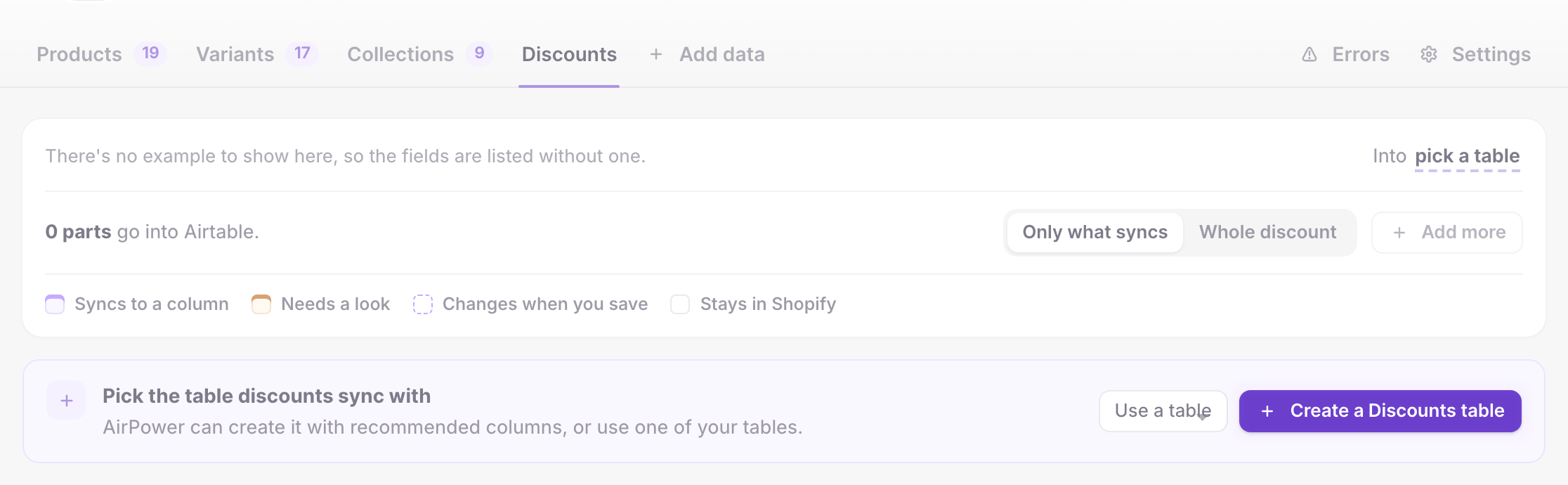
The new table comes with the recommended discount fields. To add more, click Add more on the Discounts tab. Ticking Discounts in step 6 loads your existing discounts. See Create Airtable tables and columns.
What Discounts contain
Each row is one automatic or code discount. Fields that do not apply to a discount’s type stay blank.
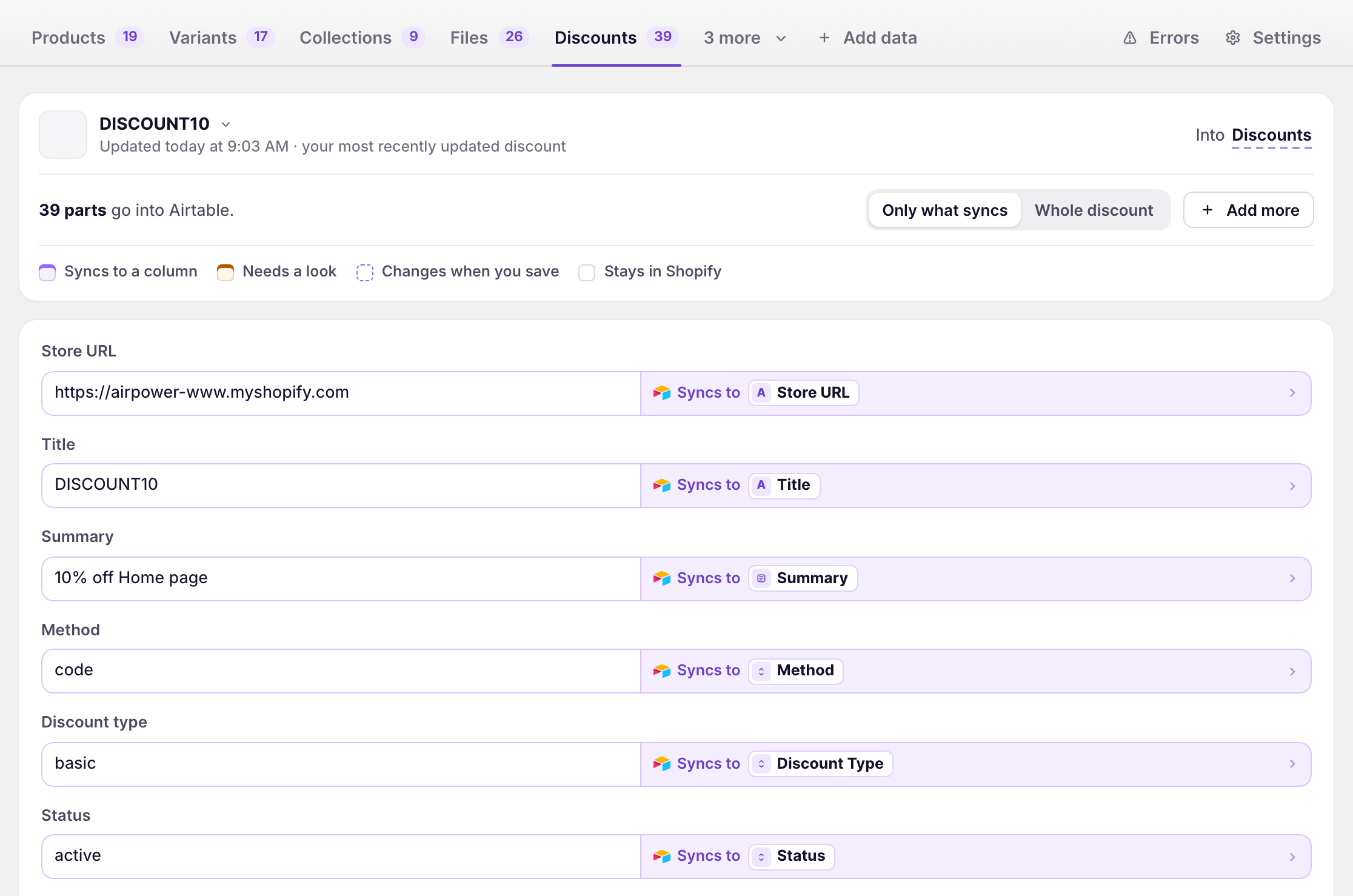
Basics
Title, summary, tags, status, discount classes, and created, updated, start, and end dates. Status is active, scheduled, or expired.
Method and type
Method is automatic or code. Discount Type is basic, buy_x_get_y, free_shipping, or app for discounts created by another app.
Value
Value type, amount, currency, percentage, and discounted quantity. Value Percentage is stored as a number from 0 to 100.
Requirements and limits
Minimum requirement type, minimum quantity, minimum subtotal, maximum shipping price, usage count, usage limit, uses per order, recurring cycle limit, and whether the discount applies once per customer.
Purchase types and combinations
Checkboxes for one-time purchases, subscriptions, and whether the discount combines with order, product, or shipping discounts.
Redeem codes
Redeem Code Count shows how many codes a code discount has. Redeem Code Count Precision is exact, or at_least when Shopify only reports a minimum. Redeem Codes Preview (First 10) lists up to the first 10 codes, one per line.
App discounts
App discount type title, description, and function ID.
Discounts do not link to Products, Collections, or Customers tables. The products and customers a discount applies to are not included.
Shopify ID column for Discounts
Discount rows store the full Shopify ID as text, for example gid://shopify/DiscountCodeNode/123. Automatic and code discounts can share the same numeric ID, so the full text ID keeps each row unique.
Use a Single line text field for the Shopify Id column on the Discounts table. This is an exception to the Number field type used on most other tables. AirPower creates the column with the correct type when it creates the table.
Load existing discounts
- On the sync’s page, click Settings
- Find Download data
- Click Download next to Discounts
The download loads every discount that exists in Shopify. A message confirms that it started.
Ongoing sync
Shopify notifies AirPower when a discount is created, updated, or deleted, and when redeem codes are added or removed. AirPower then reloads that discount from Shopify and updates its row.
When a discount is deleted in Shopify, its Airtable row is removed. A manual download does not remove rows for discounts that were deleted earlier.
What you’ll see after saving
After the first download, the Discounts table has one row per discount with its Shopify ID filled in. The dashboard sync card’s activity lists Discount updates as discounts change.
Errors appear on the dashboard sync card and on the sync’s Errors tab. See Sync errors.
Related pages
Still stuck?
Email the team and tell us which store and which Airtable base you're working with.