 AirPower
Bulk Edit Shopify Barcodes with Airtable: UPC, EAN, and NS-PID
Give each Shopify barcode type its own Airtable column, from UPC and EAN to the NS-PID for EU customs. Fill them for every variant and send them in one sync.
AirPower gives each Shopify barcode type its own column on your Variants table in Airtable: UPC, EAN, GTIN, ISBN, ASIN, and NS-PID. Fill a column for every variant, then send it to Shopify in one sync run. Each column changes only its own type, so adding NS-PIDs leaves your UPCs as they are.
In Shopify, a variant can have up to 20 barcodes, each with a type. A barcode without a type shows as Custom in the Shopify admin. The variant’s first barcode is the one in its Barcode field.
Setting barcode types in the Shopify admin means opening each variant. The product CSV puts all of a variant’s barcodes in one cell, each with its type written in front. Catalogs that need a second code on every variant, such as an NS-PID for EU customs next to a retail UPC, repeat that work hundreds of times.
Barcode columns
Barcodes are on the Variants tab, on the SKU and barcode card. To see the barcode types that don’t sync yet, click All fields you can sync above the cards. On an Airtable to Shopify sync, it’s All fields you can send.
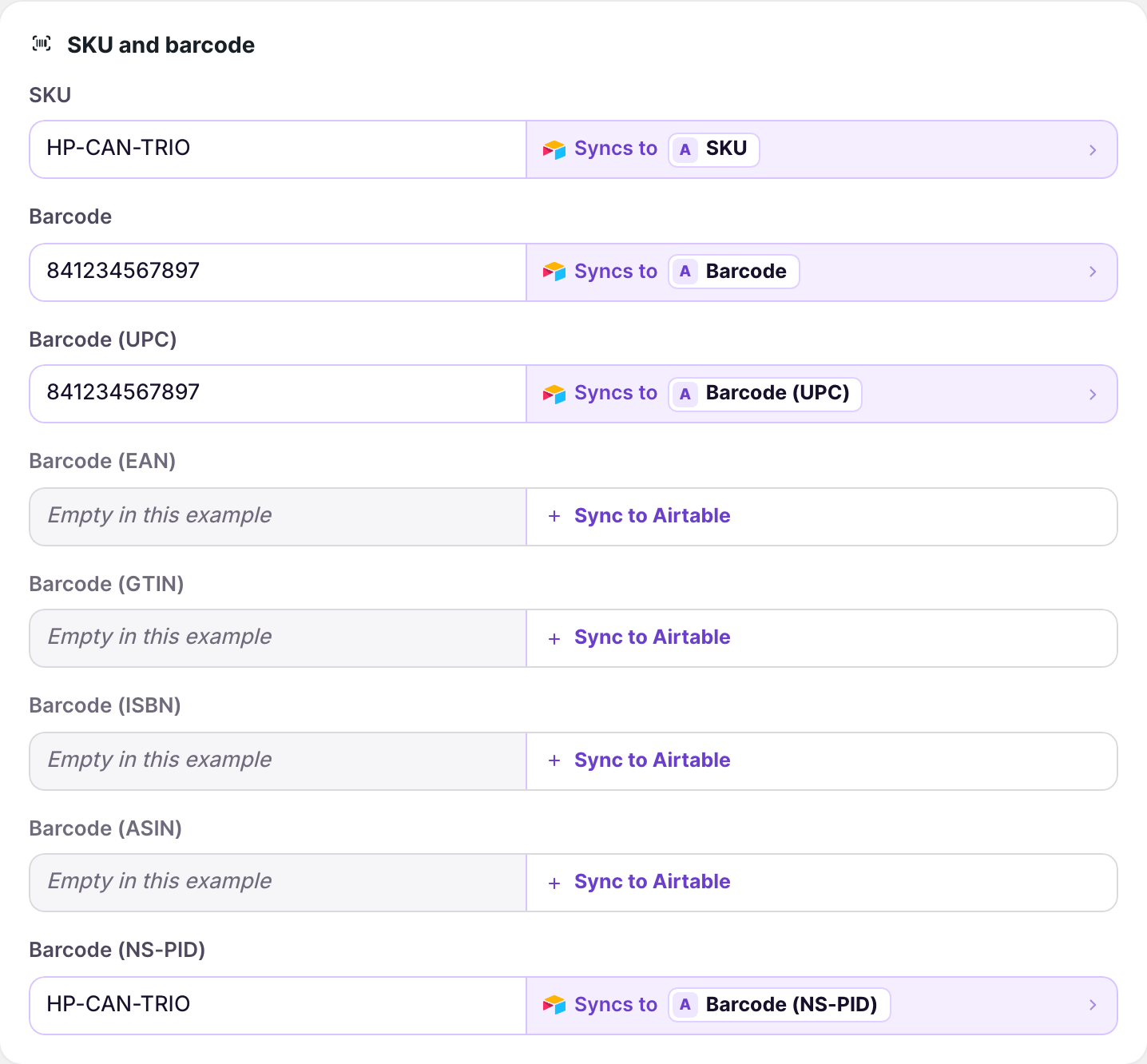
Barcode
The variant’s first barcode, whatever its type.
Barcode (UPC)
The 12-digit code used mostly in North America.
Barcode (EAN)
The 13-digit code used mostly outside North America.
Barcode (GTIN)
A GS1-registered product code of 8, 12, 13, or 14 digits.
Barcode (ISBN)
The barcode for books.
Barcode (ASIN)
The variant’s product ID on Amazon.
Barcode (NS-PID)
A manufacturer’s model or part number, used in EU customs declarations.
Each typed column holds the variant’s first barcode of that type. It’s empty when the variant has none. All seven columns work in both directions.
In the example above, the UPC is the variant’s first barcode, so it shows in both Barcode and Barcode (UPC).
Bring barcodes into Airtable
Your Shopify to Airtable sync needs Variants. See Bulk edit products and variants.
- On the dashboard, click Edit on your Shopify to Airtable sync
- Click Variants, then All fields you can sync
- On the SKU and barcode card, click Sync to Airtable on each barcode type you want
- Click Save in the save bar
New columns are named after their type, such as Barcode (UPC) and Barcode (NS-PID), and are added to your Variants table when you save. If the table already has a column with that name, the sync uses it, and Shopify’s barcodes replace what’s in it.
To fill the new columns for every variant, download products again. Click Settings, find Download data, and click Download next to Products. Barcodes download with products.
Send barcodes to Shopify
Your Airtable to Shopify sync needs Variants. See Update Shopify from Airtable.
- On the dashboard, click Edit on your Airtable to Shopify sync
- Click Variants, then All fields you can send
- On the SKU and barcode card, click Send from Airtable on a barcode type you manage
- Pick the column it comes from, or the New column option, such as New column: Barcode (UPC)
- Repeat steps 3 and 4 for each other barcode type
- Click Save in the save bar
- Fill in the columns in Airtable
- Click Sync now
Rows with a Shopify ID update their variant. New variant rows get their barcodes when the sync creates them.
Keep barcode columns as text. A number column drops leading zeros, such as the 0 at the start of many UPCs.
Add NS-PIDs for EU customs
Since November 1, 2026, EU customs declarations for online orders shipped to EU shoppers ask for product identifiers for each item. One of them is the NS-PID: the manufacturer’s own model, part, or style number. In Shopify, it’s a variant barcode with the type NS-PID.
To add NS-PIDs to your whole catalog:
- Bring Barcode (NS-PID) into Airtable, as in Bring barcodes into Airtable, to see which variants already have one
- Fill the empty cells with each variant’s manufacturer code. Group or filter by vendor to work through one supplier’s list at a time.
- Send Barcode (NS-PID) from Airtable, as in Send barcodes to Shopify, and click Sync now
Only the NS-PID changes. Each variant’s UPC, EAN, and other barcodes stay as they are. Keep one NS-PID per variant, because the column shows and changes only the first one.
Shopify has a separate admin setting for variants that have no UPC, EAN, GTIN, or ISBN. AirPower doesn’t sync that setting. Ask your carrier or customs broker which identifiers they need.
How Airtable values change Shopify barcodes
Each run changes only the barcode types the sync sends. Sending Barcode (NS-PID) alone never touches a variant’s UPC or EAN.
A value in a typed column
Replaces the variant’s barcode of that type. If the variant has none, the value is added as a new barcode.
An empty typed cell
Removes the variant’s barcode of that type.
Barcode
Changes the variant’s first barcode, whatever its type. An empty Barcode cell removes the first barcode.
Barcode and a typed column on the same barcode
If the variant’s first barcode is its UPC, and the sync sends both Barcode and Barcode (UPC), the Barcode (UPC) value wins.
Two barcodes of the same type
The column shows and changes the first one.
Shopify checks each typed barcode against its format. A row that Shopify rejects shows on the sync’s Errors tab. See Sync errors.
Products and variants on one table
When your variants share the Products table, the barcode columns go on the Products table. Each row holds its product’s first variant’s barcodes. Set them up the same way, from the Variants tab.
The Products tab also has Barcode (first variant), which only comes into Airtable.
What you’ll see after the run
In the Shopify admin, each variant’s Barcodes field lists its barcodes with their types. Barcodes that the sync doesn’t send stay as they were.
Related pages
Still stuck?
Email the team and tell us which store and which Airtable base you're working with.